Documentation
Second Brain GD docs
Install it, feed it, talk to it, and plug your own tools into it. Everything here describes the current development build; the repository is public on GitHub, under the MIT licence.
Get started
Install
The package (no Python to install)
The package holds the app, the engine and its own Python with every dependency already in place:
unzip SecondBrainGD-windows.zip (or -linux) anywhere, run
SecondBrainGD.exe (SecondBrainGD.x86_64), press Setup. Setup takes a few
seconds: no virtual environment, nothing downloaded. That Python is private to the app: not on your PATH,
not in the registry, it changes nothing else on the computer. Check a download against the
SHA256SUMS file that comes with it. The agent room (Codex, about 160 MB) is not in the package:
it is downloaded the first time you open it, if you say yes.
How the package is built, so anyone can rebuild it and compare: tools/package/build.py takes a
python-build-standalone CPython whose file and SHA-256 are pinned in tools/package/runtime.json,
installs the hash-locked wheels of engine/requirements.lock into it, and
tools/package/check_runtime.py runs the real setup with it (SQLite FTS5 and WAL, every migration,
the engine, /health). A manual GitHub workflow does the same for both systems and keeps the
zips as artifacts; it never publishes.
On Linux, local OCR of scanned pages needs tesseract-ocr from your distribution (optional), and
your API key is kept in a private file only you can read.
From the source (developers)
The same app runs from the source checkout with a Python of your own. You need three things, and none of them needs administrator rights or Docker.
| Tool | Version | Notes |
|---|---|---|
| Godot | 4.7, standard build (not .NET) | godotengine.org |
| Python | 3.12 or 3.13 | python.org (tick Add python.exe to PATH) or the Microsoft Store |
| Git | any recent | to clone the repository |
Windows
Clone the repository:
git clone git@github.com:sonixz/second-brain-gd.git C:\git\second-brain-gdStart Godot, choose Import, select
project.godot, then press Run (F5).Press Setup. The app finds Python, creates a private virtual environment, installs the hash-locked dependencies (15 packages, about 25 MB from PyPI the first time), creates the database, starts the local engine and verifies it. Each step streams its progress.
Add your OpenAI key when asked (or skip and add it later), and you land in the graph with a short Getting started guide.
Next launches say Installed, and Start takes a few seconds: finished steps are verified and skipped.
Linux and WSL
sudo apt install python3.12 python3.12-venv   # or your distribution's equivalent
git clone git@github.com:sonixz/second-brain-gd.git
cd second-brain-gd
godot --path .                                # then press Setup
The bootstrap also runs without Godot:
python3 engine/bootstrap.py detect   # is this Python compatible?
python3 engine/bootstrap.py setup    # install or repair, then start the engine
python3 engine/bootstrap.py status   # show install_state.json
python3 engine/bootstrap.py stop     # stop the engine
Microsoft Store Python silently redirects folders it creates under AppData. Run Setup from Godot (it creates the data folder first), or see Troubleshooting.
Get started
Your OpenAI key
The archivist, meaning search, voice and image descriptions use your own OpenAI API key. Without one, the Brain still captures, stores, links and searches by words; nothing is lost.
- Where to enter it: the prompt after Setup, the microphone the first time, or the engine room's Voice card.
- Where it goes: your system's credential store (Windows Credential Manager, Secret Service on Linux). Never in a file, never in Godot, never in logs.
- Who uses it: only the local engine, and only for the request at hand.
| Feature | Default model |
|---|---|
| Archivist (filing) | gpt-6-sol, falling back to gpt-4o-mini |
| Archivist (chat with tools) | gpt-6-sol, falling back to gpt-4o |
| Sparring (thinking partner) | gpt-6-sol, falling back to gpt-4o |
| Meaning search and related ideas | text-embedding-3-small |
| Image descriptions | gpt-4o-mini |
| Live conversation (F9) | gpt-realtime-2.1-mini with gpt-4o-mini-transcribe |
Models can be changed in the engine room; every call's cost is shown, and your real bill can be read live (see Real AI costs).
Your data
Backups, restore, start fresh
Your whole Brain is backed up by itself, every day by default, while the app is open. Everything is in: items, documents and page pictures, conversations, your agents, the undo history, settings. Never your API key: it stays in the credential store. Each backup is read back and checked before it counts.
Nothing is erased without a verified backup, and never by voice.
All of it is in the engine room (the status pill at the top right), Your data: step by step in How-to → Back up and restore.
| In Your data | What it does |
|---|---|
| Back up now (or say “back up now”) | A full backup; files already backed up are not copied again. |
| Choose… | Where backups go. Until you choose, they sit in your data folder, on the Brain's own disk: they protect you from mistakes, not from a disk failure. Pick another disk, a USB key or a synced folder (OneDrive). |
| Automatic | Every 6 or 12 hours, every day, every 3 days, every week, or off. Kept: the newest of each of the last 7 days, 4 weeks and 6 months, your last 5 manual backups, and 30 days of safety copies. |
| Restore… | Your Brain goes back to that backup. You type a word to confirm; the state just before is kept as a safety copy (restore it to undo). An older backup gets the newer database changes. |
| Export everything… / Import a backup file… | One file to move your Brain to another computer; there it is checked, then you restore it. |
| Packs… | Share a project, or bring in someone's pack as a layer (Brain packs). |
| Repair the installation… | Rebuilds the engine's Python environment; your data is not touched. |
| Start fresh… | A checked backup first, then an empty Brain with its starter notes. Your key, preferences and browser pairing stay. |
| Uninstall… | Removes your Brain, your API keys and the app's preferences from the computer, keeping your backups if you want. Then delete the app's folder yourself. |
Not encrypted. Backups are plain files, like your Brain itself. If they go to a cloud folder, its protection is the cloud's; on a laptop, turn on BitLocker (Windows) or your system's disk encryption. Restoring or erasing is never possible by voice.
Uninstall by hand
Uninstall… in Your data does all of this for you. By hand, with the app closed:
Delete the data folder:
%LOCALAPPDATA%\SecondBrainGDon Windows,~/.local/share/second-brain-gdon Linux (keep itsbackupsfolder if you want them).Windows: open Credential Manager → Windows Credentials and remove the entries
openai@SecondBrainGDandopenai_admin@SecondBrainGD(or one namedSecondBrainGD). Linux: the keys were in the data folder, already gone.Delete the app's preferences: the
Second Brain GDfolder under%APPDATA%\Godot\app_userdata(Linux:~/.local/share/godot/app_userdata).Delete the app's folder, and remove the browser extension from
edge://extensionsif you added it.
For developers: engine/backups.py, docs/architecture/backups.md, routes under
/data in the local API.
Get started
English or French
The app is in English. The FR / EN switch at the top right turns the whole interface into French (and back) at once, and is remembered. It also sets:
- the agents' default language: they answer in the app's language, and always in the language you speak or write to them if it is another one;
- the Live conversation's transcription (F9); dictation (F8) detects the language by itself;
- what the buttons say on your behalf (“Yes, save it”), the briefing and the weekly review, and the engine's own words (receipts of the browser and the bookmark).
Your content keeps its own language: an English article keeps an English summary in a French interface, and its pictures are described in the page's language. The voice reads French with a Québec accent and English with a neutral North American one.
For contributors: every interface text is written in English inside I18n.t("…")
(scripts/core/i18n.gd); its French lives in i18n/fr.json.
python3 tools/i18n.py --check fails when a text has no French, and the tests run it.
Get started
Where your data lives
Nothing is ever written inside the repository. Set SBGD_HOME to use another folder.
- SecondBrainGD/ %LOCALAPPDATA% on Windows
- data/
- second_brain.sqlite3 your whole Brain, one file
- originals/ every file and page you added
- backups/ verified backups, until you choose another place
- exports/ the packs you shared
- runtime/ · logs/ · config.json the engine while it runs
- data/
| System | Folder |
|---|---|
| Windows | %LOCALAPPDATA%\SecondBrainGD |
| Linux | ~/.local/share/second-brain-gd |
| macOS (untested) | ~/Library/Application Support/SecondBrainGD |
| Inside | What |
|---|---|
data/second_brain.sqlite3 | Your brain: items, places, links, themes, the archivist's records, meaning vectors |
data/originals/ | Every file and web page you added, kept once by content hash |
exports/ | Brain packs you exported |
runtime/server.json, runtime/api_token | The engine's port and its token while it runs (see API) |
logs/ | bootstrap.log and server.log |
config.json | Settings such as {"port": 8765} |
Backing up your brain means copying this folder while the app is closed.
Capture
Capture anything
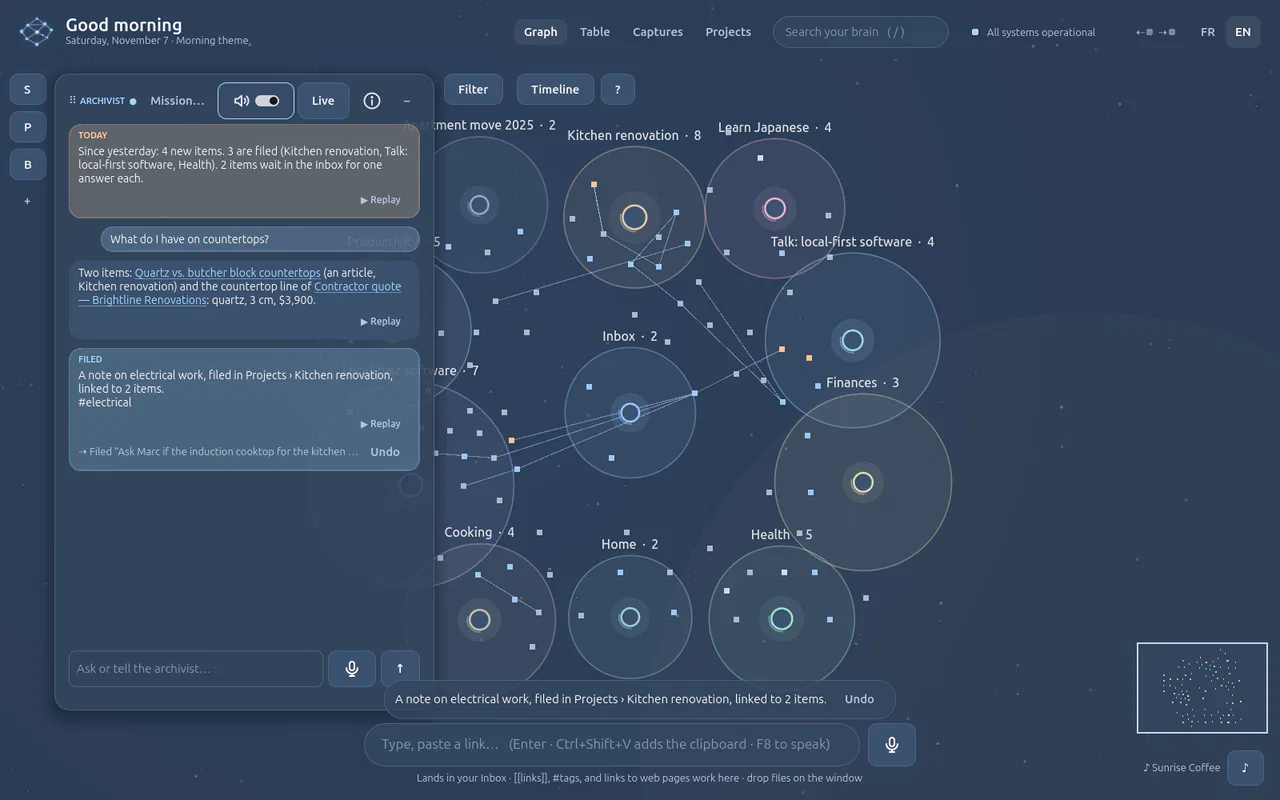
Everything enters through one funnel, lands in the Inbox, and the archivist files it within seconds.
| Input | How |
|---|---|
| A thought or a long text | Type or paste in the bar at the bottom, then Enter (Ctrl+Space focuses it). [[Title]] links, #tag groups. |
| A web page | Paste its URL in the same bar: it is fetched, kept, summarised and indexed. |
| A file | Drop it on the window: PDF, Word, Markdown, text, HTML, CSV, JSON, PNG, JPG, WebP, GIF. |
| A folder or a .zip of notes | Drop it on the window: a preview, then a layer (see Import a folder or a zip). |
| A voice memo | Drop the recording (m4a, mp3, wav): transcribed and cut into ideas and tasks (see Voice memos). |
| A recipe page | Send it from the extension or paste its link: it becomes a recipe with its fields (see Recipes). |
| Your voice | Hold F8, speak, release. The receipt is spoken back. |
| The clipboard | Ctrl+Shift+V, or say “add this to the Brain”. |
| Your browser | The “Send to Brain” bookmark (see From your browser). |
| Your scripts | The local HTTP API. |
The Captures tab lists everything that came in, newest first, with where it was filed, its type, origin, summary and themes. Click a card to fly to the item in the graph.
Organise
How the Archivist agent files
The Archivist is the AI agent that keeps your Brain in order. It is data-oriented: it receives, understands, files and links. It gives no opinions and asks only when it cannot file an item without an answer.
Every filing comes with a receipt and Undo.
CODE and PARA
The Brain follows the CODE method (Capture, Organise, Distil, Express) and files into PARA:
| Place | Means | Example |
|---|---|---|
| Project | An outcome with a deadline | Kitchen renovation |
| Area | An ongoing responsibility | Health, Finances |
| Resource | A topic you care about | Local-first software |
| Archive | No longer active | Last year's move |
A new brain starts with only an Inbox and a Getting started guide. The archivist creates places and themes as your data arrives.
What it reads and decides
- Reads: the item and an excerpt of its original, your places with a few example titles, your themes, the six closest items by meaning, and your working context.
- Decides: a title, type and language; a summary and key points for long inputs; people, organisations, concepts, places and dates; a place (existing or new); 1–3 themes; links; a confidence score; and a one-line receipt.
- When unsure: below the confidence threshold the item stays in the Inbox with its question.
- Undo: every filing is journaled. Use the receipt's Undo or say “undo that”; a place the archivist had just created is removed too if it is empty again.
Working context
Say “I want to structure the Renovation project”: the project is created if needed and the next items are filed with it in mind. Say it with no name to clear it.
Organise
The graph
Wheel to zoom, drag to pan, drag an item to move it, / to search, Esc to close.
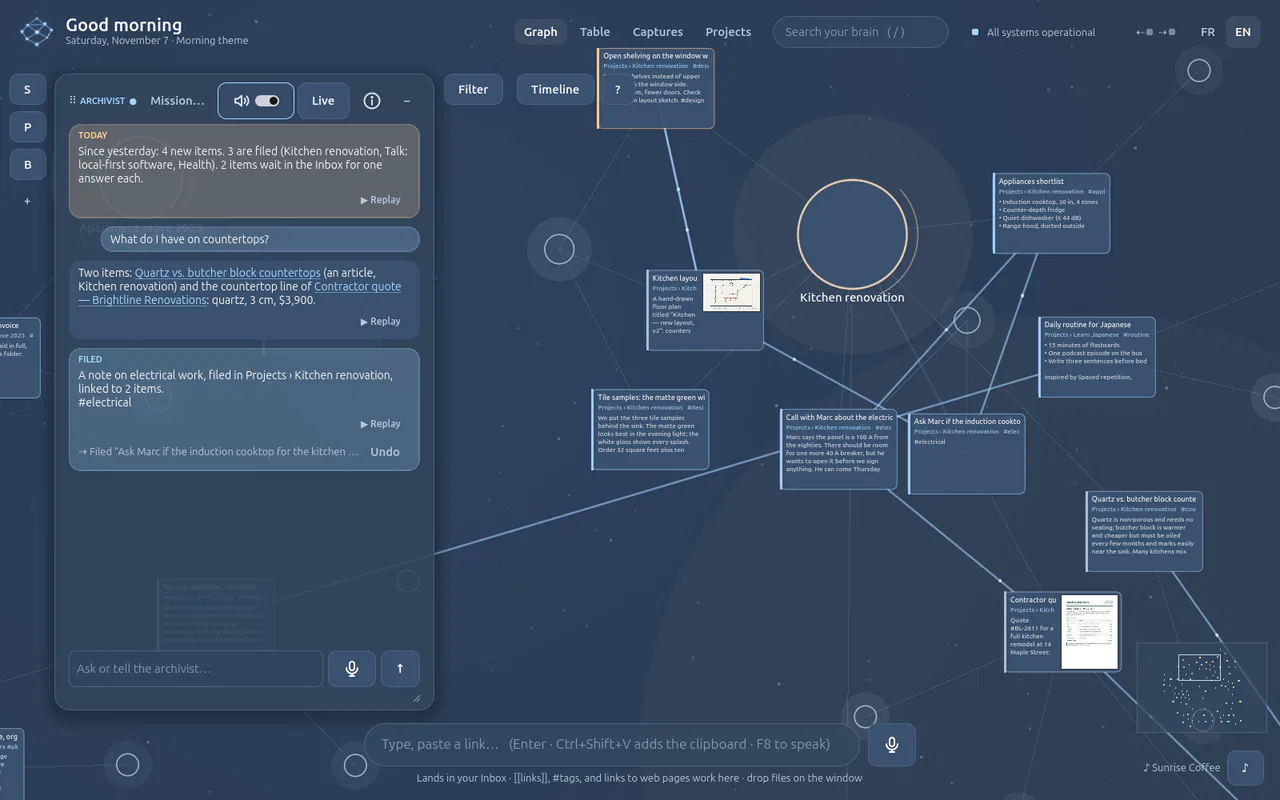
Semantic zoom
| Level | You see |
|---|---|
| Far | Places as named zones with their counts, the Inbox in the middle |
| Middle | Items as dots and their links |
| Near | Items as cards: title, place, first lines; PDFs show their first page |
| Read | The full text, inside the graph. Double-click to edit it in place |
Organise the view
- Zones are stable: each place keeps its spot around the Inbox.
- Fold a place (double-click it, or “fold Recipes”) into a
+Nbadge. - Filter by type, origin, date, word, theme or pack (“show only the articles about AI”, “clear the filters”).
- Views: the picker next to Filter lays the same items out another way: along time, around one idea, by what they mean, or in 3D. See Views below.
- Paths: “how is X connected to Y?” draws the shortest meaningful path.
- Related ideas: dashed lines suggested by meaning. Keep one as a real link (✓) or dismiss it (✕).
- Move items between places: drag an item into another place's zone to file it there. Dropped anywhere else, the graph takes it back: the layout stays alive.
- Remove a place: ✕ next to it in Spaces & briefing, or “delete the place X”. Its items go back to the Inbox; Undo restores it.
Views
A view is a way to lay out the same items. The picker in the graph's bar (it says Zones) changes it; the items glide to their new spot, and the filters and the selection stay as they were.
| View | You see | Good for |
|---|---|---|
| Zones | Items around their place, the Inbox in the middle. Leaving it remembers every position | Every day: filing, reading, moving items |
| Timeline | Items along time, in lanes: one per place, per type of item or per origin (typed, spoken, web, files, packs). A strip over the axis shows the busy weeks | When did this come in? What did I add this month? |
| Focus | One item in the middle; what is linked to it on rings, one, two and three links away. Click a neighbour and it becomes the centre; the breadcrumb at the top left walks back | Following one idea without the rest |
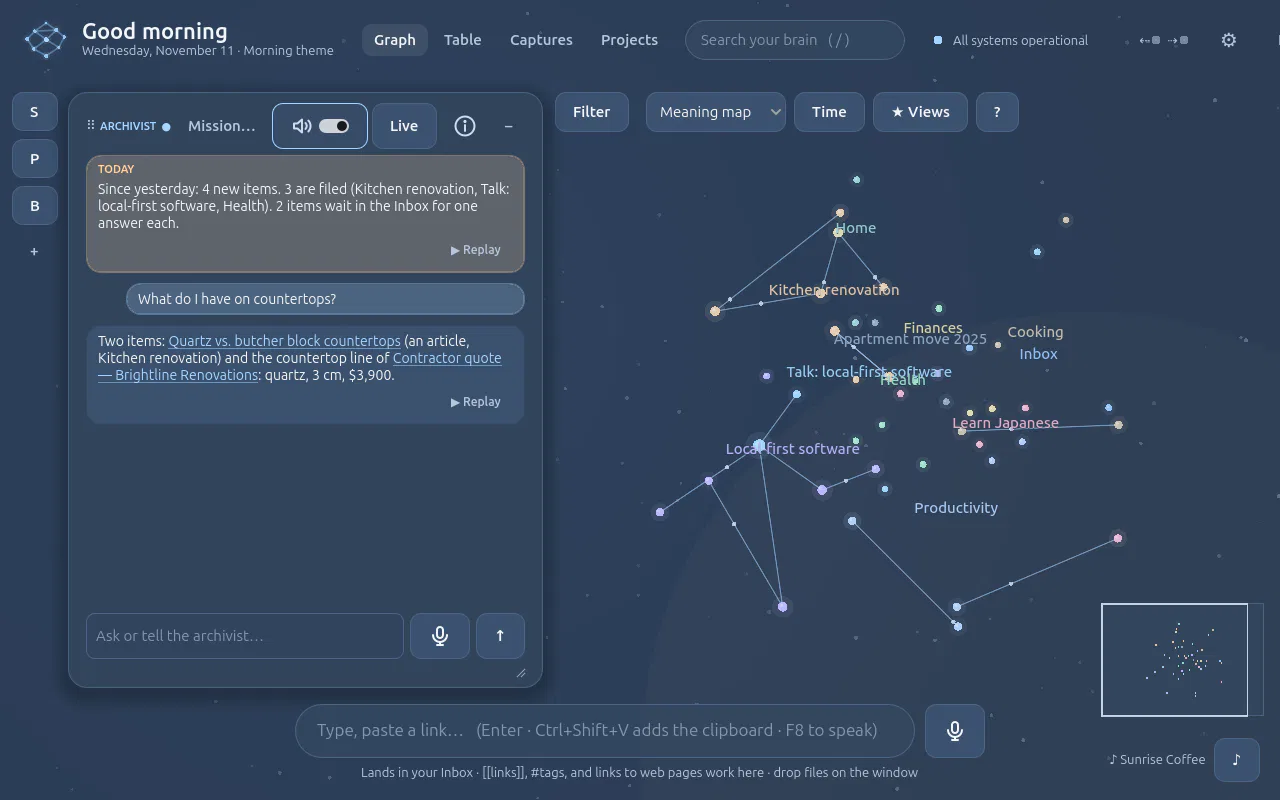
| Meaning map | Items placed by what they mean, whatever place they are filed in. Each wears its place's colour; a place's name is written where its items gather | Seeing islands of themes, and items filed far from what they mean |
| Layers (3D) | The zones stacked through time: one plane per period, the oldest at the bottom; a place is a column, an item a ball of light | Looking and exploring: a showcase, not a place to work |
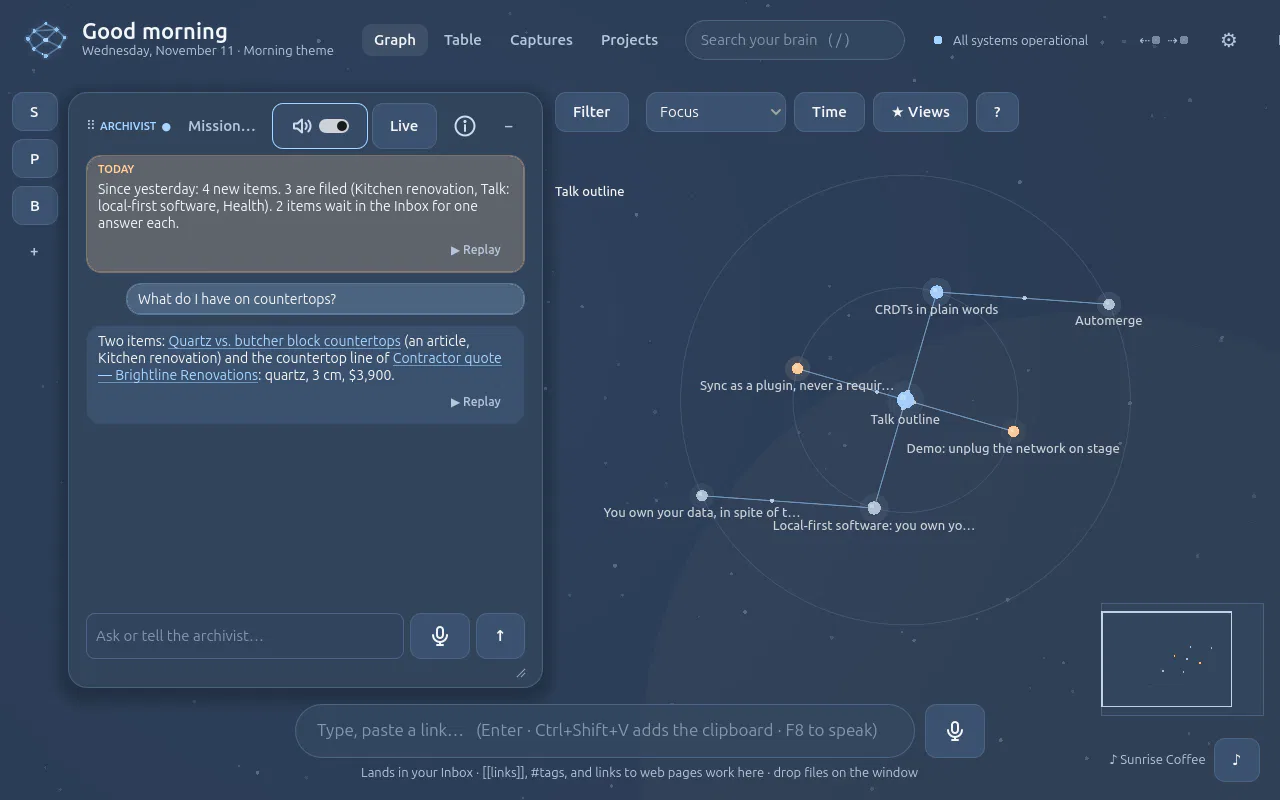
- Focus opens around the selected item, or around the most linked one when nothing is selected. It follows real links and related ideas, not places or themes.
- The Meaning map uses the meaning memory, so it needs your OpenAI key; without it the app says so and stays where it was. The map is the same for the same items, and may turn when many are added.
- Layers (3D) turns slowly until you touch it. Drag to turn, wheel to zoom; a click flies to an item, a click on nothing flies back, a double-click lands on the item in the flat graph, where reading happens.
- By voice: “show the timeline” and “back to the zones”. The other views are picked by hand for now.
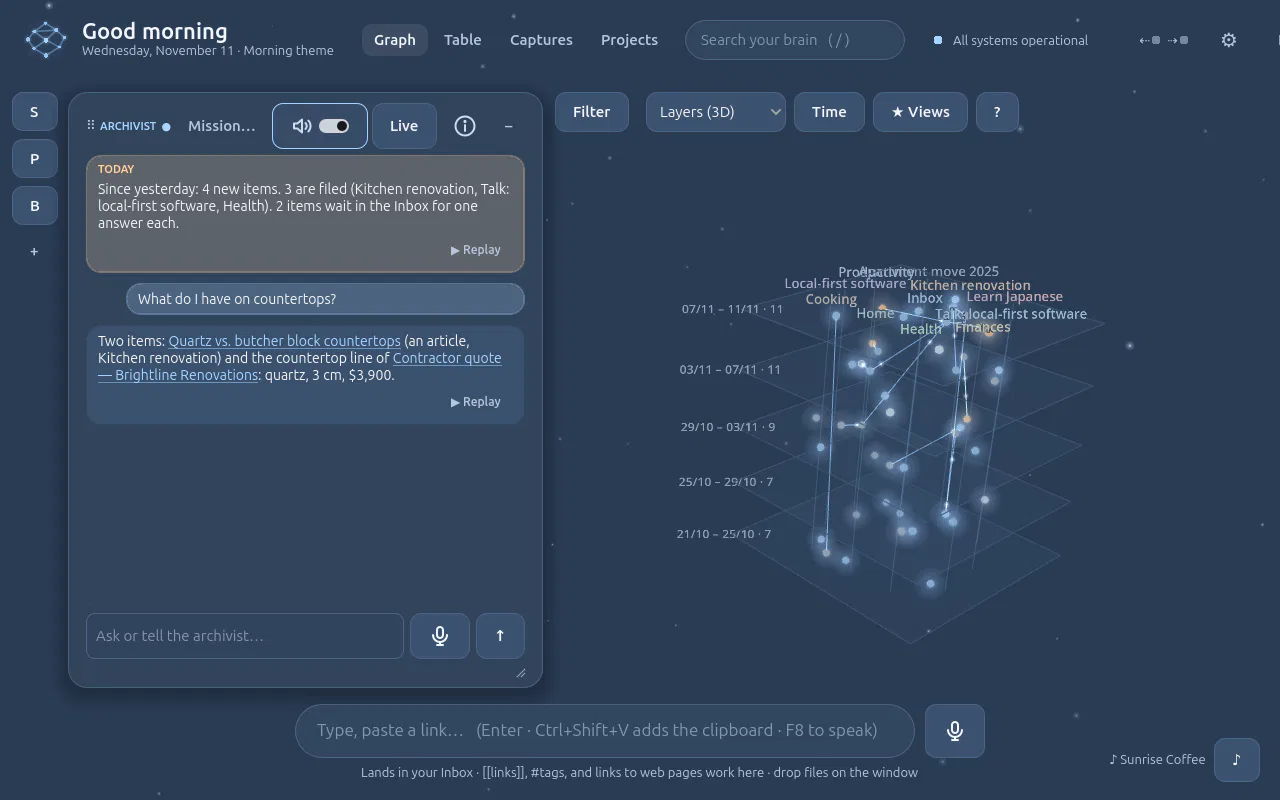
Saved views
★ Views keeps what you see under a name: the view, its lanes or its centre, the filters and where you were looking. Click a name and the graph glides back to it; saving under an existing name replaces it; ✕ forgets it. Saved views stay on this computer, with the app's preferences.
Time: the Brain as it was, and the play
Time opens a second row under the bar: a slider, ▶, a date and a count. It works in every view.
- The slider shows the Brain as it was at that moment: the items that came later step out.
- ▶ plays it growing, from the cursor (or from the first item) to now, in about 18 seconds. Each arrival lights up with a ring and says its name, its links draw themselves, a large date shows the moment, and the camera follows the growth, then comes home.
- The speed, beside ▶: 0.5×, 1×, 2×, 4×. Drag the slider while it plays and it goes on from there.
- In Layers (3D) the planes fill up from the bottom and the camera rises with the arrivals.
- Closing Time comes back to now.
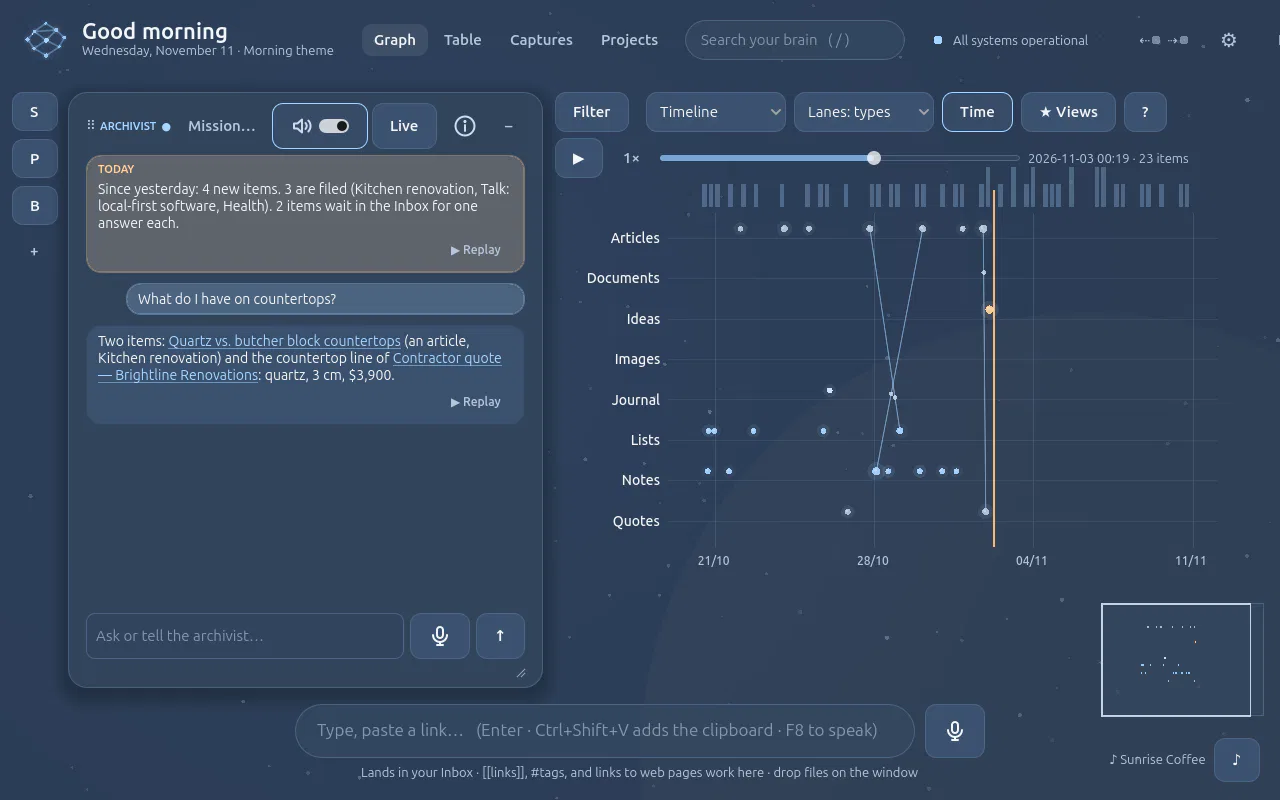
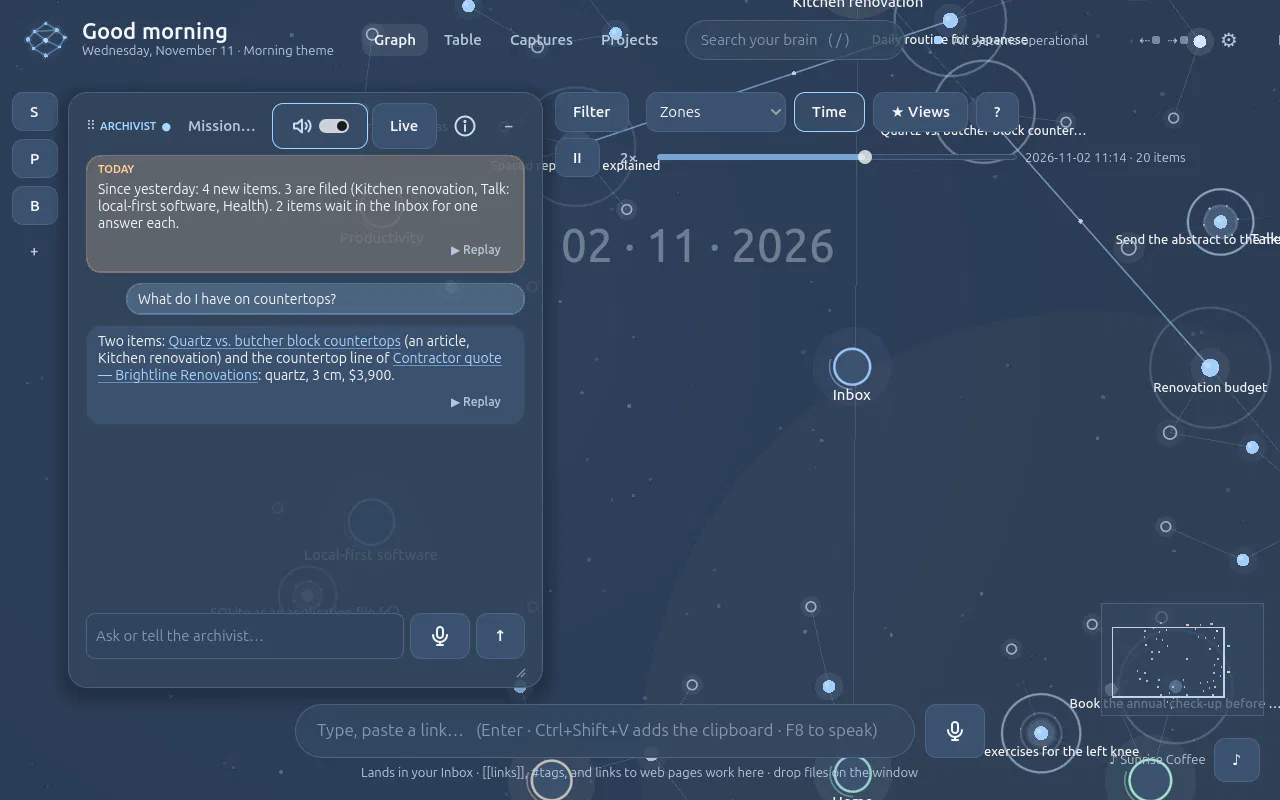
Step by step: See your Brain from another angle · Watch your Brain grow.
What the lines mean
The ? button shows the legend, and hovering a line says what it is.
| Line | Meaning |
|---|---|
| Solid, bright, with a dot travelling along | A real link: you wrote [[…]], the archivist linked them, or you kept a suggestion |
| Dashed, warm | Suggested by meaning, not confirmed (✓ keeps it, ✕ dismisses it) |
| Thin, pale | The item belongs to this place (or a project to its area) |
| Thin, faint grey | The item carries this #theme |
| Thick, golden | The answer to “how is X connected to Y?”, shown for a moment |
Organise
Recipes and typed items
Some items have fields: a recipe has servings, times, ingredients and steps. The Brain keeps those fields as data it can sort, add up and print, beside the item's text.
- A recipe page becomes a recipe, without AI. Send it from the browser extension or paste its link: when the page carries recipe data (schema.org, as most recipe sites do), the item gets its servings, prep and cooking times, rating, picture, steps with their sections, and each ingredient as quantity, unit and name (« 1 can of 796 ml diced tomatoes » stays a can of 796 ml). English and French.
- Ask about it: « the paella for 6 » rescales the quantities; « mark it tried », « rate it 5 » change its fields.
- Your own types: an agent's instructions can describe one (« Book: author, year, read or not »); the agent creates the type once and saves items with their fields. Missions can save typed items too.
- What you write under My notes in a typed item stays when its fields change.
Organise
The table and grocery lists
The Table tab shows the same items as the graph in rows and columns. Pick a type (a recipe's fields become columns) or every item, search titles, fields and ingredients, click a column title to sort, edit a cell in place, save the view under a name, or export the rows as CSV for Excel. By voice: « show my chicken recipes as a table ».
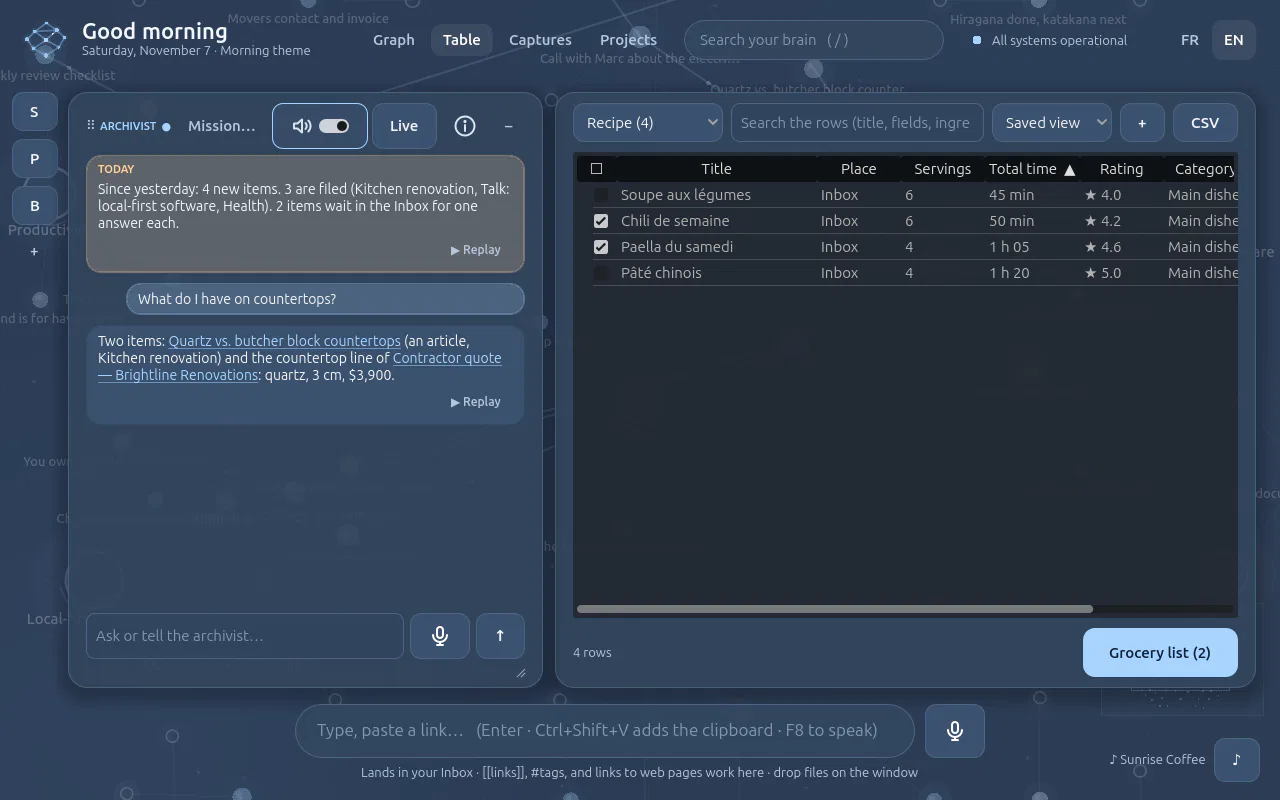
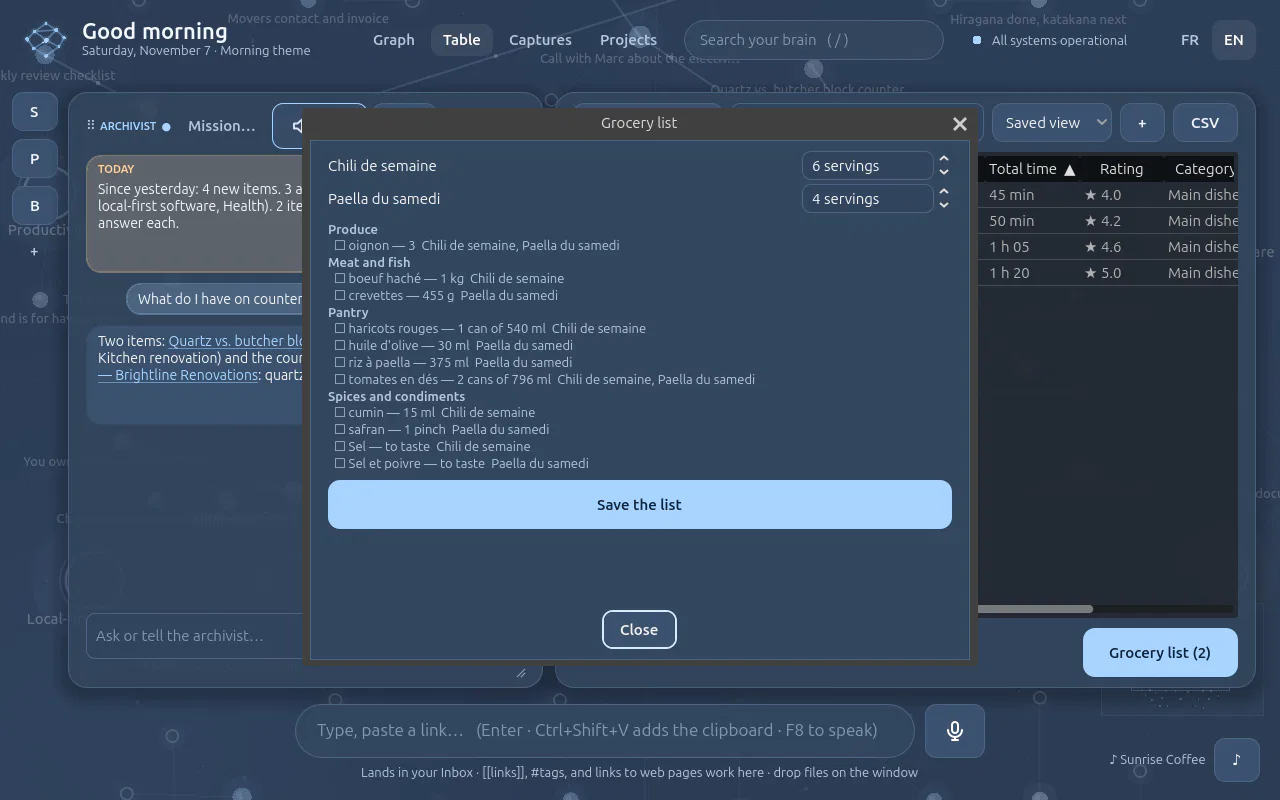
- Grocery list: tick recipes, choose the servings of each, and the ingredients are added up (cups, spoons, ml and g converted and summed; cans kept as cans), grouped by aisle in shop order. A word the Brain does not know goes to « Other »: nothing is guessed.
- Save the list: a note linked to its recipes, and its lines added to your « Épicerie » checklist.
Organise
Print on Letter paper
Recipes, grocery lists and notes print as clean Letter (8½ × 11) pages: a recipe with its facts, picture, ingredients beside the numbered steps (rescaled when printed for other servings); a grocery list as boxes to tick, by aisle; any other item as its text.
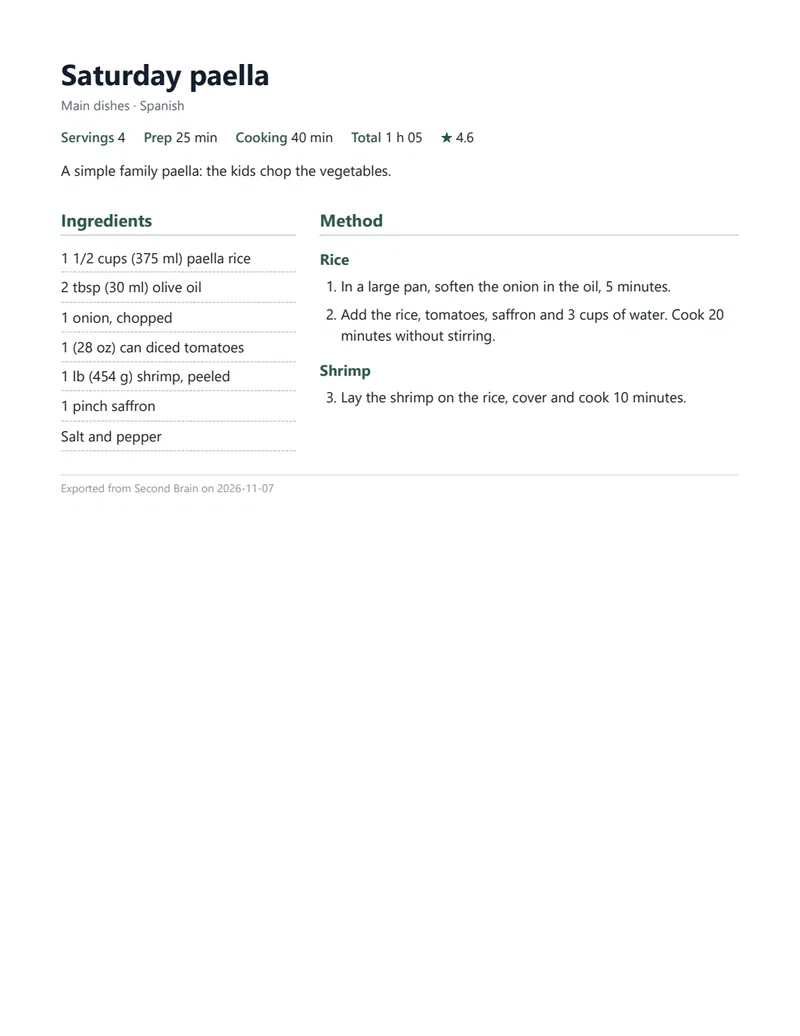
- PDF in the table (the ticked recipes, or the rows shown), PDF for the fridge in the grocery list, or by voice: « export the paella recipe as a PDF ».
- Microsoft Edge (already on Windows) prints the PDF in the background, with a throwaway profile and no
window; the PDF opens. Without Edge, the page opens: Ctrl+P → Save as PDF. Files stay in your data folder
(
exports/).
Agents
Two agents: the Archivist and Sparring
Both work on the same Brain, each with its own role, tools, model and conversation. Each has its own floating panel; F8 and F9 talk to the one you last used (its title shows a ●).
| Archivist | Sparring | |
|---|---|---|
| Role | Keeps the graph: files, moves, links, finds, cleans up | A thinking partner: questions, challenges or reassures, brings in what your Brain holds |
| Changes the Brain | Yes, with Undo | Never, except a synthesis you asked for and approved |
| Reads | The Brain, documents, the web | The Brain, documents, the web |
| Model | gpt-6-sol (fallback gpt-4o) | gpt-6-sol (fallback gpt-4o), setting sparring_chat_model |
| Daily briefing | What came in, where it went, what to explore | None: it waits for your idea |
What an agent is: instructions, capabilities, a model
An agent is a profile stored in your Brain: its instructions (role, tone, rules), its capabilities (which tools it may use) and its model, with its own conversation. Press ⓘ in an agent's title bar to open its settings, in a floating tile you can move like the others: rename it, pick its model, switch each capability on or off (its tools are listed under it), edit its first words and instructions, or press Ask the Builder to change it… and describe the change out loud. Changes apply from the next message, also in a live conversation already open (from the next thing you say). The Archivist and Sparring can be brought back to the original; other agents can be created (the Agent Builder interviews you, so you never write instructions yourself) and deleted.
| Capability | Tools |
|---|---|
| Read the Brain | search, read items and documents, places, paths between ideas |
| Internet | search the web, read a page |
| Browser | open a tab, close the tabs it opened |
| Capture | add notes, web pages, the page in your browser, the clipboard |
| Organise the graph | file, move, link, unlink, delete, places, packs, undo |
| Approved synthesis | save a synthesis of the conversation, only after your “yes” |
| Drive the interface | zoom, filter, open views, items and documents, voice speed |
The Archivist has every capability except the synthesis; Sparring reads the Brain and the web, drives the
interface and saves approved syntheses. A new tool joins a capability, and every agent that has it gets it.
API: GET /assistant/agents, POST /assistant/agents, PATCH /assistant/agents/{id},
POST /assistant/agents/{id}/reset, DELETE /assistant/agents/{id}; chat and live take
agent. Shortcuts Ctrl+5… open the custom agents.
Creating an agent with the Agent Builder
You never write instructions yourself. Click + on the rail, or tell the Archivist “create an agent for me”: the Agent Builder (B) opens and interviews you, one short question at a time, by voice or keyboard: what the agent is for, its tone, how it should behave, what to avoid, which places of your Brain it should know, what it may do, and an example or two. It then writes rich, structured instructions (role, tone and format, how it works, what to avoid, its ground, examples), a first sentence and its capabilities, and shows the draft in full, marked NEW AGENT · NOT CREATED YET. Adjust it out loud (“more demanding”, “drop the synthesis”), then “yes, create it” or Create it: the agent gets its panel, its letter on the rail and its own conversation.
To change an agent: “make Sparring less repetitive” to the Builder; it reads the agent, drafts the changes (CHANGES · NOT APPLIED YET) and applies them on your yes. A new agent only reads unless you ask otherwise; organising the graph is given only when you say so. Checked with the real model: a three-question interview produced a “Interview Coach” for DevSecOps and Azure interviews, made for the car.
Arranging the panels
- Move a panel by its title bar (⠿). Near the left, right or bottom edge, the place it will land lights up; drop it there to dock it, anywhere else it floats. Moves glide into place.
- Share an edge: two panels on the same edge are stacked; drag the line between them to give one more room.
- Shrink a panel (–, or double-click its title): it becomes a letter on the rail at the left edge (A, S, P, I); click it to open it again.
- Shortcuts: Ctrl+1 Archivist, Ctrl+2 Sparring, Ctrl+3 Places, Ctrl+4 the item tile: open it (and talk to that agent), or shrink it if it is open. Tab on the graph: the graph alone; Tab again brings the panels back.
- Resize with the bottom-right corner. Everything is remembered; Reset the panel layout (in Places) puts it back.
Talking it through with Sparring
Open the SPARRING panel (click its title bar), then press F9 for a live conversation, or hold F8 for one sentence at a time. Ideal in the car: talk for twenty minutes.
Ask for what you need: “reassure me”, “challenge me honestly”, “play devil's advocate”, “what do I already have on this in my Brain?”, “look at what others do”.
When the idea is ripe: “sum it all up”. Sparring writes a synthesis of what was decided or clarified (not every sentence): the idea, the arguments kept, objections and answers, open questions, next leads. It shows in full in its panel, marked not saved yet.
Approve: “yes, save it”, or the Save to the Brain button. The Archivist files it like any item, with Undo. Want changes? “change the part about…”, or Change it…. In one go: “sum it up and save it”.
The engine enforces it: Sparring has no tool that moves, links or deletes, and saving is refused unless your
message asks for it or approves the draft. A live conversation lasts at most 20 minutes and $1 by default
(Voice settings: live_max_minutes, live_session_cap_usd).
Organise
Voice commands
Hold F8 to speak one thought or command; press F9 for a live conversation you can interrupt (F9 again, or “thanks, that's all”, to end). The phrases below are examples, not a fixed grammar: the model understands paraphrases and other languages.
Two microphones, two jobs. The microphone in the capture bar (bottom, Ctrl+M) dictates content: what you say becomes an item in the Brain. F8, F9 and the microphone in an agent's panel are for requests: “file my CVs” is carried out, not stored.
How the Archivist acts on your graph
It is an agent with tools that run on your real database: it finds items by what you call them
(find_items), then acts (move_items, link_items, unlink_items,
remove_tag, trash_items…). Each tool reports exactly what changed, what was already in
place, and what was not found or ambiguous; the engine checks that a reply never claims a change that did not
happen. Every change has an Undo. Items have one place: “take it out of the Inbox” means moving it to its
place; lines to a #tag or another item are not places. tools/assistant_bench.py replays real
requests on a throwaway brain to compare models.
| Goal | Say |
|---|---|
| Capture | “add this to the Brain” · “note that…” · “I want to structure the X project” |
| Organise | “put my four CVs in Job search” · “what is waiting in the Inbox?” · “remove the link between X and Y” · “link X to Y” · “delete the note X” · “delete the place X” (its items go back to the Inbox) |
| Navigate | “open the captures” · “zoom into X” · “fold X” · “show the timeline” |
| Filter | “show only the articles about AI” · “clear the filters” |
| Find | “find the article about…” · “how is X connected to Y?” |
| Documents | “open the document X” · “next page” · “open the original” · “close the document” |
| Packs | “export the X project” · “export everything” · “import a pack” · “switch off / merge / remove the pack X” |
| Recipes and the table | “the paella for 6” · “mark it tried” · “show my chicken recipes as a table” · “export the paella recipe as a PDF” |
| Voice | “read that again” · “speak faster” · “undo that” |
| Key | Action |
|---|---|
| F8 (hold) | Push to talk |
| F9 | Start or end a live conversation |
| Ctrl+M | Microphone in the capture bar: dictates content (it becomes an item), not a request |
| Ctrl+Shift+V | Capture the clipboard |
| Ctrl+Space | Focus the capture bar |
| / · Esc | Search · close |
| ← → · + − · 0 | In the document viewer: pages · zoom · fit |
Agents
Internet
The Archivist (and any agent with the Internet capability) can search the web and read pages, then add what you choose to the Brain. Ask with F8: “search the web for DevSecOps jobs in Montreal”, “read me the second one”, “add the first one to Job search”.
- Search uses OpenAI's hosted web search (
gpt-4o-mini, about two seconds): your query goes to OpenAI. The reply names the sites; the pages are listed as links under it and open in your browser. - Reading a page happens from your computer, with the same guards as a pasted link: public addresses only, size and time limits.
- Nothing enters the Brain unless you ask. An added page is kept, summarised, indexed and filed like any link, with Undo.
- Sites that refuse automatic reading (many job boards do) are respected: the page becomes a reference card with what the search said and the link, and the reply says so.
- What comes from the web is data: no agent ever follows instructions found in a page.
- Turn it off:
PATCH /assistant/settings {"web_access": false}.
Capture
Import a folder of notes (Obsidian, Markdown)
Already keep notes as Markdown files, in Obsidian or elsewhere? Drop the folder on the window, or click + Folder in the Places panel, or say “importe mon vault Obsidian”. The app reads the folder and tells you what it found (“Obsidian vault detected”) before anything comes in: notes, links, places, themes, the links that point to notes not written yet, and the cost.
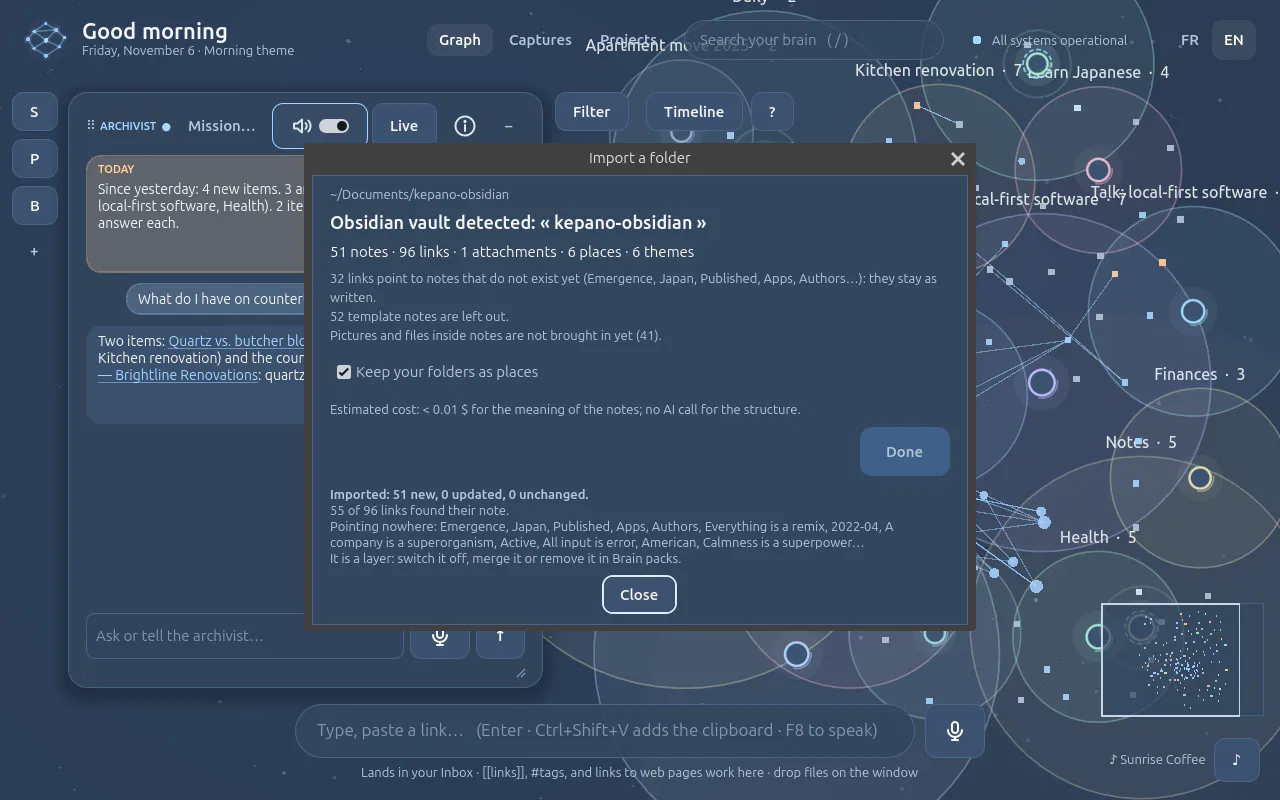
- No AI call for the structure. Each note becomes an item named after its file (that is how
Obsidian links). Front matter becomes fields and stays readable at the top of the item;
[[links]](with a folder, a heading or an alias, in tables too) become your links; front-matter tags and#tagsbecome themes. - Your folders become places. PARA folders are understood: Projects/Kitchen becomes the project Kitchen, Areas/… an area. Untick Keep your folders as places to send everything to the Inbox instead. Template folders are left out.
- The only cost is the meaning index (a few cents for thousands of notes), done in the background. The archivist then adds links by meaning on top of yours.
- It is a layer, like a pack: switch it off, merge it into your Brain or remove it in one go (engine room → Your data → Packs…). Import the same folder again later: only new and changed notes come in.
- Pictures inside notes (
![[beach.png]],) come along, attached to their note: its card shows the first. Other embedded files (PDF, audio) stay out for now: drop them on the window to add them. - Other apps. A Logseq graph (pages, journals,
key:: valueproperties, aliases,#[[tags]]), a Notion export (Markdown and CSV: page ids are taken out of titles and folders, links between pages kept) and plain Markdown folders with[text](other.md)links (Foam and others) are read the same way.
Step by step: Bring your Obsidian vault.
A .zip works too: drop a downloaded vault (a GitHub « Download ZIP », a Notion export with zips inside)
or choose it with + File. It is unpacked safely into the app's own folder (nothing outside it, size
limits, no program run), your download stays as it is, and the same preview opens. File names with underscores
(Detect_Magic.md) read as titles with spaces, so their links resolve. Stop ends a long read or
import and keeps nothing; imports wait up to ten minutes.
Capture
Voice memos
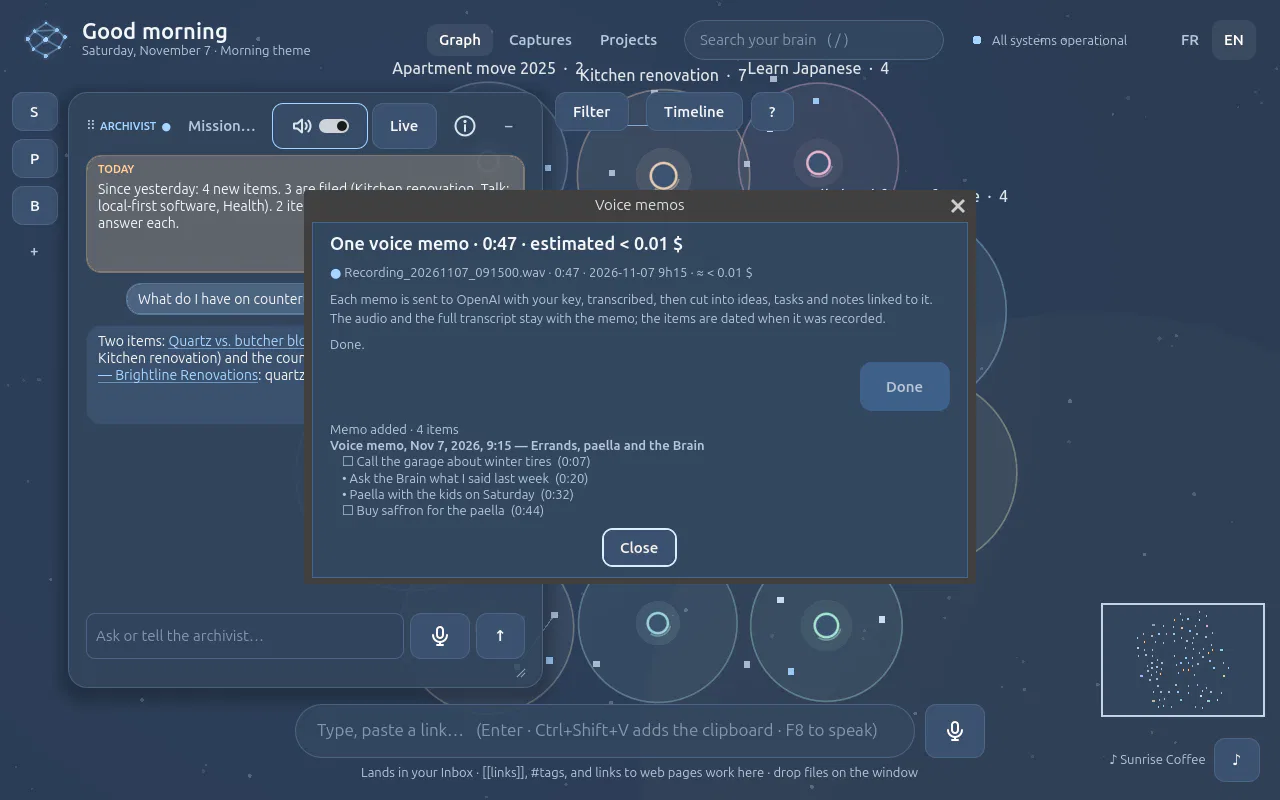
Record your ideas anywhere, even offline, with your phone's recorder. At home, drop the file (or several, or a folder of them) on the window, or choose it with + File. A preview opens before anything is sent: each memo's length, when it was recorded (from the file itself, or a date in its name), and the estimated cost. It also checks, for free, that your OpenAI key may use a transcription model.
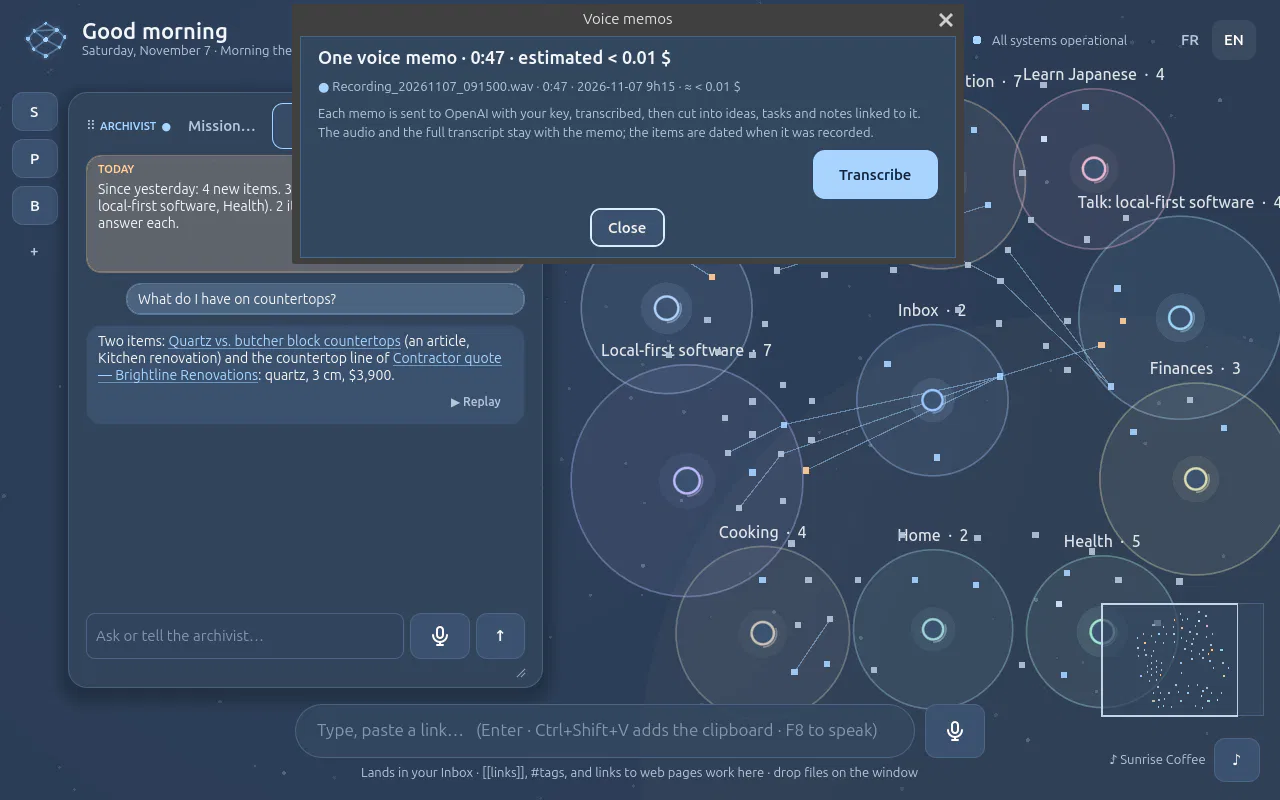
- Transcribe: each memo goes to OpenAI with your key (
gpt-transcribe, about half a cent a minute), then one call cuts it into ideas, tasks and notes, each linked to the memo with about when it was said (« at about 1:32 ») and filed in one of your places when it clearly belongs there. - The memo keeps the original audio and the full transcript (searchable). Every item is dated when the memo was recorded, so the timeline shows when the idea came.
- Formats: m4a, mp3, wav, mp4, webm, up to 25 MB (about 45 minutes).
.ogg,.opusand.aacare refused with a way out: export the memo as m4a or mp3. - Stop ends the run after the memo under way; the same recording dropped twice is added once.
Agents
Ask about precise items (@)
Normally the agent searches your Brain to find what fits your question. When you already know which items you mean, type @ in an agent's panel: items appear by title as you type (no AI call, instant). Pick one with the arrows and Enter, or a click; it becomes a chip above the box. Add up to eight, remove one with ×. The answer then comes from those items and cites them; the agent looks elsewhere only if you ask, or if they are not enough (and says so).
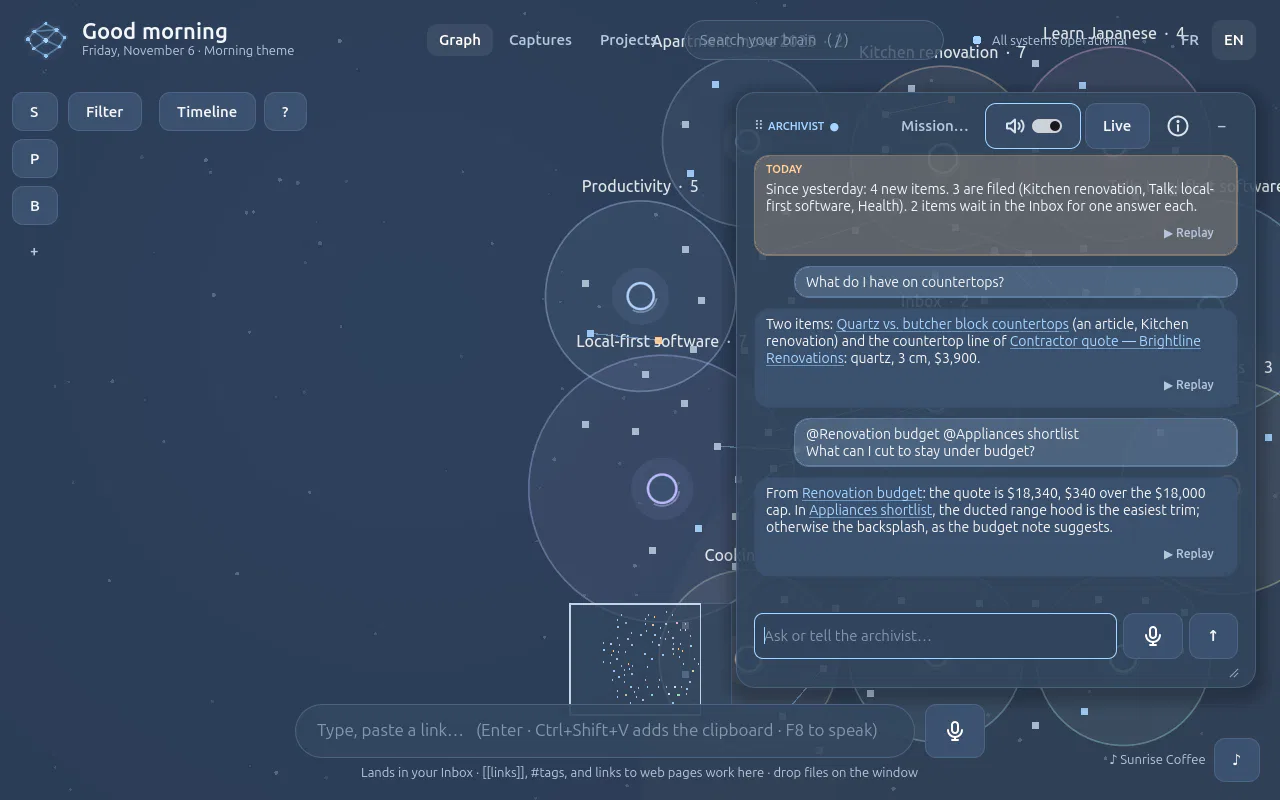
- From the graph: open an item and click Ask about this. It is pinned to your next question to the active agent.
- By voice: name the item first. “Dans la recette du poulet rôti, combien de temps au four ?” When one item clearly matches, the answer comes from it, and the panel says Answered from: …. When several match, the normal search takes over.
- With a mission: chips present when you click Start go with the mission, which starts from those items; Run again keeps them.
- A long document is sent in part (about 6,000 characters per item); the agent can search the rest. The text of a mentioned item is data, never instructions.
Agents
Missions: give an agent a real job
A conversation is for questions. A mission is for a job that takes several searches, many pages and a decision from you: “this week's menu from the IGA, Maxi and Provigo specials”, “compare three heat pumps for my house”. Click Mission… at the top of an agent's panel and say what it should do, or ask the agent (typed or by voice) when it has the Missions capability: it starts the mission and says so in one sentence.
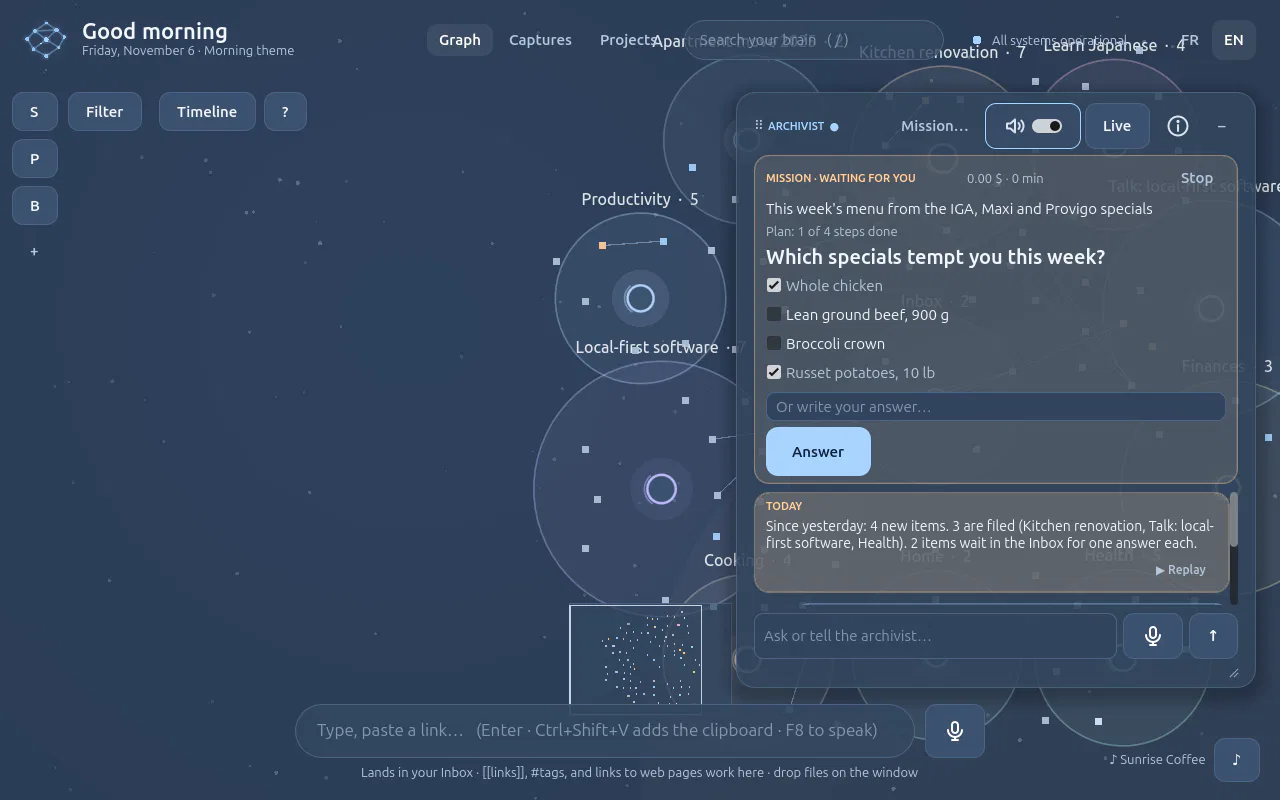
- It works in the background, on the agent's model (not the small voice model): a plan you see ticked step by step, what it is doing (“Reading…”), the cost so far, and Stop.
- It asks when the choice is yours: a question with boxes to tick (or your own words). It waits; a sound tells you.
- Nothing is invented: a price, a fact, a recipe comes from a page it read, and the link is kept. Pages built by script or that block robots are read through your browser when the extension is paired (in a background tab, closed after).
- Nothing enters the Brain before you approve. The draft is shown in full: Approve and save, Change (say what), or Discard. Approved, every item is created at once, with its source link and themes, linked to the others, in the place the mission chose; one Undo removes them all.
- A ceiling on every mission: 1 $ and 15 minutes of work by default. Each agent can have its own (and its own mission model) in its settings (ⓘ), under Missions. Near it, the agent wraps up with what it has; at it, the mission stops and keeps what it found. It survives closing the app and resumes.
- What missions cost is in the engine room, card Missions: each mission with its agent, status, rounds, minutes and cost, this month's total; click one to see its plan, findings with their source links, your answer and the draft. Run again starts the same goal with the same agent (next week's menu).
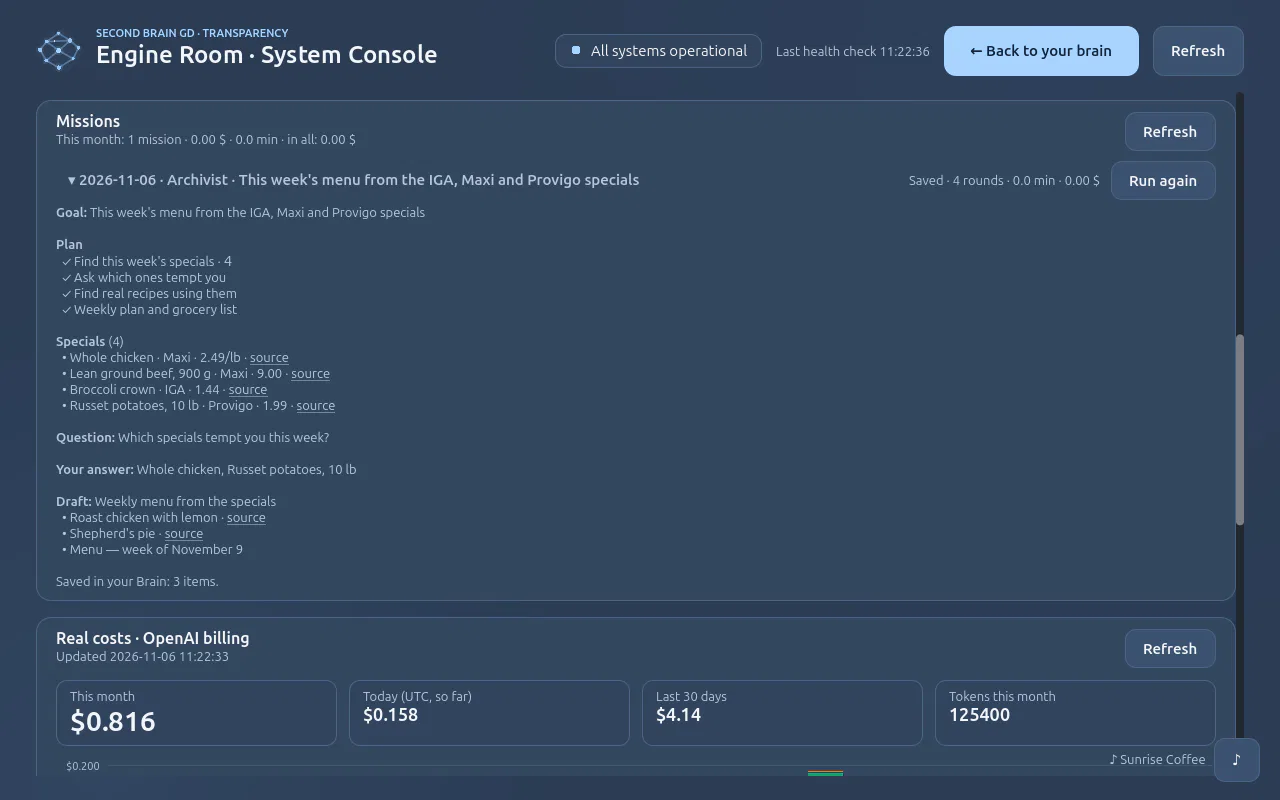
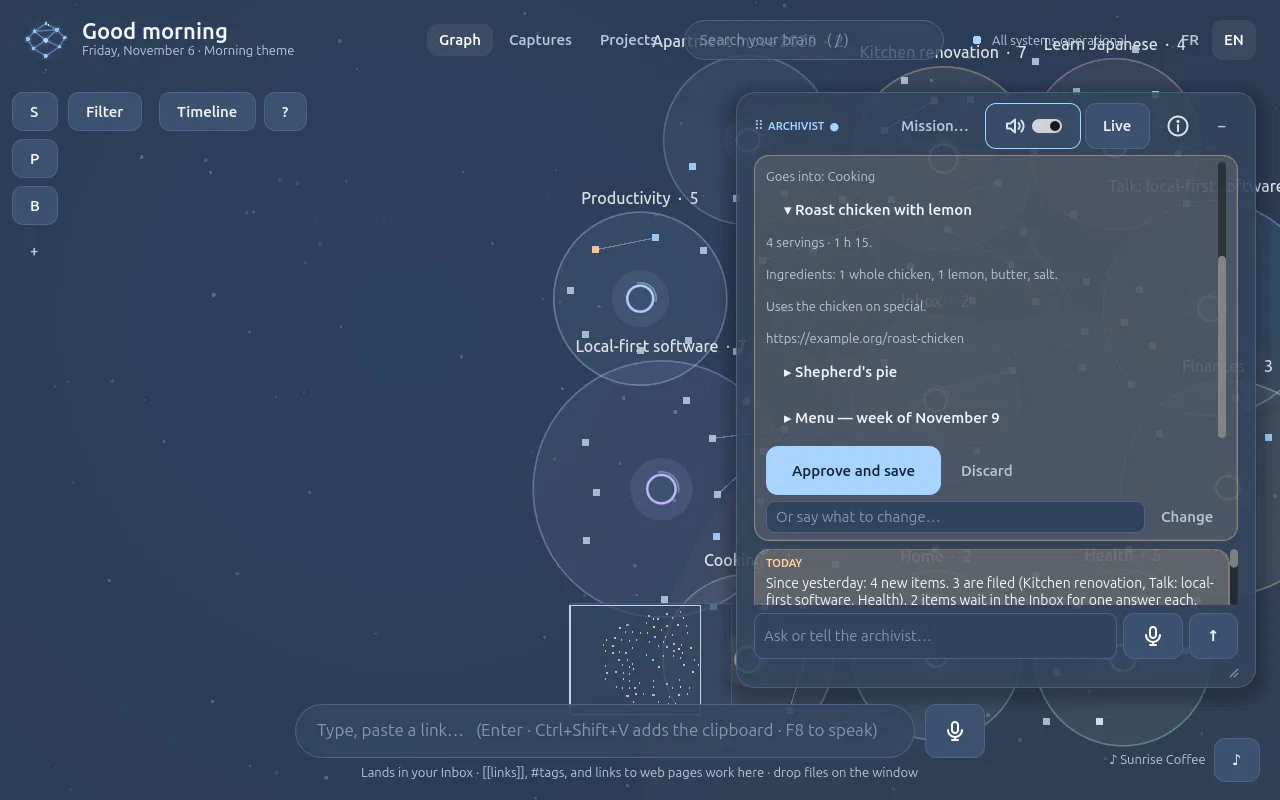
Measured on the first real mission (gpt-6-sol): the week's Maxi flyer, four specials with prices and dates,
the question, two real recipes read: 13 rounds, under a minute, about 0.27 $. API: /missions
(start, follow, answer, revise, approve, stop, again, limits).
Step by step, recorded on the real model: How-to → Plan the week's meals with a mission.
Capture
Browser extension (Edge, Chrome)
The extension connects your browser to your Brain. Send the page you are reading, or just a passage, in one click; and let the Archivist open pages for you, add them once you have checked them, and close them, by voice. It sends the page as your browser shows it: after your login, the page's scripts and any “I am not a robot” check. Nothing is downloaded a second time, so sites that block robots (many job boards) are not a problem.
As your browser shows it: after your login, nothing downloaded twice.
Local and private. The extension is a folder of the project
(browser-extension/), loaded in your own browser. No store, no account, no publication. It talks only
to the engine on 127.0.0.1, with its own token obtained by pairing.
Step by step with screenshots of the real Edge: How-to → Connect your browser. The extension speaks your browser's language: French in a French Edge, English otherwise.
1. Install it (once)
Open
edge://extensionsin Edge, orchrome://extensionsin Chrome (version 116 or later).Turn on Developer mode (in Edge, the switch in the left menu; in Chrome, top right).
Click Load unpacked and choose the folder
browser-extensionof your Second Brain GD checkout (for exampleC:\git\second-brain-gd\browser-extension).Pin it to the toolbar (the puzzle icon, then the pin) so its icon is always visible.
The browser may remind you that an extension runs in developer mode: that is expected for an extension that does not come from a store. After an update of the project, click Reload on the extension's card.
2. Pair it with your Brain
In the app: Captures → Send from browser… → Pair a browser. A code like
K7Q2-M9XDand the engine's port appear. The code works once, for 10 minutes, and dies after 5 wrong attempts.Click the extension's icon, type the code (and the port if it is not 8765), keep “Also let the Brain read the pages it opens” ticked, and press Pair.
The browser asks for the permission to read pages: accept it to use voice commands such as “add it” (see the permissions below). The app's dialog then shows ● Connected: Edge 130.
Pair several browsers if you want (Edge and Chrome, up to five). Unpair all browsers in the same dialog revokes every extension token at once; an unpaired extension forgets its token and asks to be paired again.
3. Use it
| You | What happens |
|---|---|
| Click the icon → Send this page, or Alt+Shift+B | The page you see is kept (its HTML as the original) with its main image and figures, its text indexed, summarised and filed by the archivist. A ✓ appears on the icon; the app shows “From your browser: …” and refreshes the graph. |
| Select text → right-click → Send the selection to the Brain | Only that passage enters, as a quote, with the page as its source. |
| Right-click a picture → Send this image to the Brain | That picture becomes an item of its own, described and filed (Pictures from pages). |
| “open the first job offer” (F8) | The Brain opens the page in a new tab of your browser and remembers it. |
| “add it” / “put it in the Brain” | The page the Brain opened is added as your browser shows it, after your check. |
| “add this page” | The tab in front of you is added. |
| “keep just the selected passage” | Only your selection on that page is added. |
| “close it” / “close the tabs you opened” | The last tab the Brain opened, or all of them, close. Your own tabs are never closed. |
Without the extension, “open it” still opens the page in your default browser, but the Brain cannot read or close that tab; “add it” then downloads the page itself, and a site that refuses robots gives a reference card (title, summary, link) instead of the full page.
Permissions, and why
| Permission | Why |
|---|---|
http://127.0.0.1/* | Talk to your engine, and nothing else on the network. |
tabs | Open the pages the Brain opens, remember them, close them. |
activeTab, scripting | Read the page you send by clicking (the icon, the shortcut, the right-click menu): access to that one tab, at that moment. |
contextMenus | The right-click entries. |
storage, alarms | Keep the port and token; wake up and reconnect when the browser stopped the extension. |
| Optional: read pages on all sites | Only for voice commands (“add it”), where you do not click. The extension itself only reads a tab the Brain opened or the one you name; it never browses your history, cookies or passwords. You can refuse it: clicking Send keeps working. |
How it works
Edge / Chrome                               Second Brain engine (127.0.0.1:8765)
┌──────────────────────────┐   WebSocket    ┌──────────────────────────────────┐
│ background.js            │◀── commands ───│ assistant tools: open_web_page,   │
│  open · capture · close  │─── results ───▶│ capture_browser_tab,              │
│                          │                │ close_browser_tabs                │
│ the page as you see it   │── POST page ──▶│ /browser/capture → kept, indexed, │
│ (HTML + visible text)    │                │ summarised, filed by the archivist│
└──────────────────────────┘ └──────────────────────────────────┘- The extension keeps one WebSocket to
/browser/ws; the engine pings it every 20 seconds, which also keeps the browser from putting the extension to sleep. If the link drops (app closed, computer asleep) it reconnects by itself, with an alarm every 30 seconds as a safety net. - A page arrives with its HTML (kept as the original, up to 3 MB) and the text that was on screen (up to 1 MB). The readable text comes from the HTML without menus, header and footer; for an app-like page with little HTML text, the visible text is used. A PDF tab or a protected page cannot be read by a script: the engine then downloads the address itself.
- The app checks every two seconds whether something arrived from the browser, refreshes the graph and says so.
Security
- Its own token. Pairing exchanges the one-time code for a random token; the engine stores only its hash. That token can send pages and answer commands, nothing else: it cannot read your Brain, call the API or your OpenAI key. Unpair revokes it.
- Only 127.0.0.1. Nothing goes to a server. Searching the web (see Internet) is separate and goes through OpenAI.
- Pages are data. Whatever a page says, no agent ever follows instructions found in it.
- Limited reach. Commands act only on tabs the Brain opened, or on the tab in front when you ask for it;
browser pages (
edge://,chrome://, the stores) cannot be read at all.
Troubleshooting
| Symptom | Fix |
|---|---|
| The icon's dot is orange: “Paired, not connected” | Open the app (the engine must run). It reconnects within 30 seconds; or click Reconnect in the extension's settings. |
| “The Brain is not reachable on 127.0.0.1:8765” | The engine uses another port: read it in the pairing dialog and enter it when pairing. |
| “wrong code” or “no pairing code is active” | Ask for a new code (it lasts 10 minutes and works once). |
| “the extension may not read pages yet” | Open the extension and click Allow reading the pages the Brain opens, or send by clicking instead. |
| “this page cannot be sent” | Browser and store pages are off limits; for a PDF, the engine downloads it. |
| The extension asks to pair again | It was unpaired from the app (or the token was revoked): pair again. |
API (for developers)
| Route | Auth | Purpose |
|---|---|---|
POST /browser/pair/start | API token | New one-time pairing code (10 min) and the port |
POST /browser/pair {code, browser} | the code | Returns the extension's token |
GET /browser/status | API token | Paired browsers, connected or not, pages received (rev, last_added) |
DELETE /browser/pair | API token | Revoke every extension token, close the link |
WS /browser/ws | token in the first message | {"type":"hello","token",…}, then commands
{"type":"command","id","action":"open|capture|close",…} answered by {"type":"result","id","ok","data"}; pings every 20 s |
POST /browser/capture {url, title, html, text, selection, selection_only, place} | extension token | Add a page or a passage; returns the note, its place and the archivist's receipt |
Capture
Pictures from pages
A web page brings its pictures that carry something: its main image (shown on its card in the graph) and its figures: a diagram, a chart, a table published as a picture, a photo with a caption. At most five per page. Logos, icons, avatars, ads, menu and footer pictures and anything small never come in. Any other picture is one right-click away. Step by step: How-to → Keep the pictures that matter.
| How | What is kept |
|---|---|
| Send a page with the extension | The chosen pictures as Edge shows them (after your login), with the page. The receipt says how many. |
| Paste a link | The same choice, downloaded by the engine (public pictures only). |
| Right-click a picture → Send this image to the Brain | That picture, as an item of its own that remembers its page: described, read for its text, filed. |
What a picture says
Each kept picture is a kept original (originals/), deleted with its item. What it says is
searchable with the page: its caption, the text read in it on your computer (Windows OCR, or Tesseract),
and, for a picture that holds information (text or numbers in it, a caption that says diagram or chart, or
a PNG, the usual format of diagrams and screenshots), a description by the vision model
(assistant_vision_model, gpt-4o-mini by default, a fraction of a cent per picture), written in
the page's language. A decorative photo is kept with its caption only: no model call.
The reading view shows the pictures first, with their captions, then the text. Drawings in SVG are not kept yet; formats kept: PNG, JPEG, WebP, GIF, up to 8 MB each.
Capture
Without the extension: a bookmark
Prefer the browser extension. If you cannot install it, a bookmarklet sends the address of the current page, or your selection, to your Brain, in any browser. The engine then downloads the page itself, so pages behind a login or a robot check may be refused.
In the app, open Captures and press Send from browser….
Copy the link it shows, then add a bookmark named “Send to Brain” to your bookmarks bar with that link as its address.
On any page, click the bookmark. Without a selection, the page is fetched, kept as an original, summarised and filed. With a selection, the selection becomes a quote with the page as its source.
Under the hood it opens:
http://127.0.0.1:<port>/capture?key=<capture key>&url=…&title=…[&text=selection]- Why a navigation, not a script: browsers allow a top-level navigation to the local engine, while they often block page scripts from calling 127.0.0.1.
- The capture key can only add a page or a selection. It is not the API token and not your OpenAI key. Renew it from the same dialog if it ever leaks; the old bookmark stops working.
- If the engine had to use another port, copy the link again.
Connect
Connect an AI tool to your Brain (MCP)
Your Brain is also an MCP server: any AI tool that speaks the Model Context Protocol can read and
search it, on this computer only (127.0.0.1): Claude Code, Codex, GitHub Copilot in VS Code (agent mode),
Cursor, Claude Desktop… Click the ⇠● ⇢● lights at the top (or ⚙ → AI tools); in the first tab,
Who may read your Brain, pick your tool and press Connect (read only). You get its own way to connect: a command for Claude Code
or Codex (on Windows, or in WSL through a small relay with the app's Python), the lines to paste in
mcp.json for VS Code or Cursor, or, for any other client, the address
http://127.0.0.1:<port>/mcp with its key (Streamable HTTP) or a command it starts (stdio).
The key is shown once; restart the tool.
⇠ in: your AI tools read your Brain · ⇢ out: your agents use MCP servers. On 127.0.0.1 only.
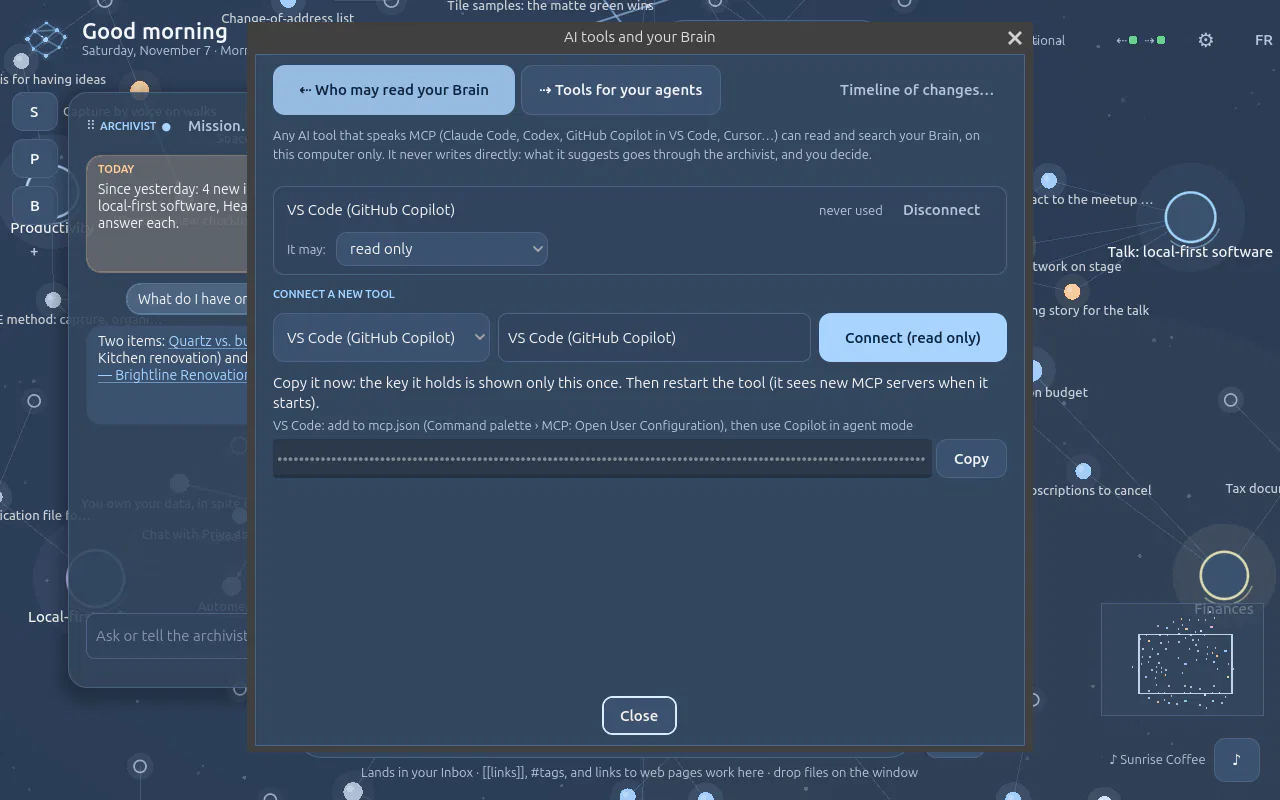
- Read: overview, search, an item's text in parts, places, neighbours, paths, recent items, the Inbox, typed items as rows. Answers are short and paged; your content is always marked as data, never as instructions.
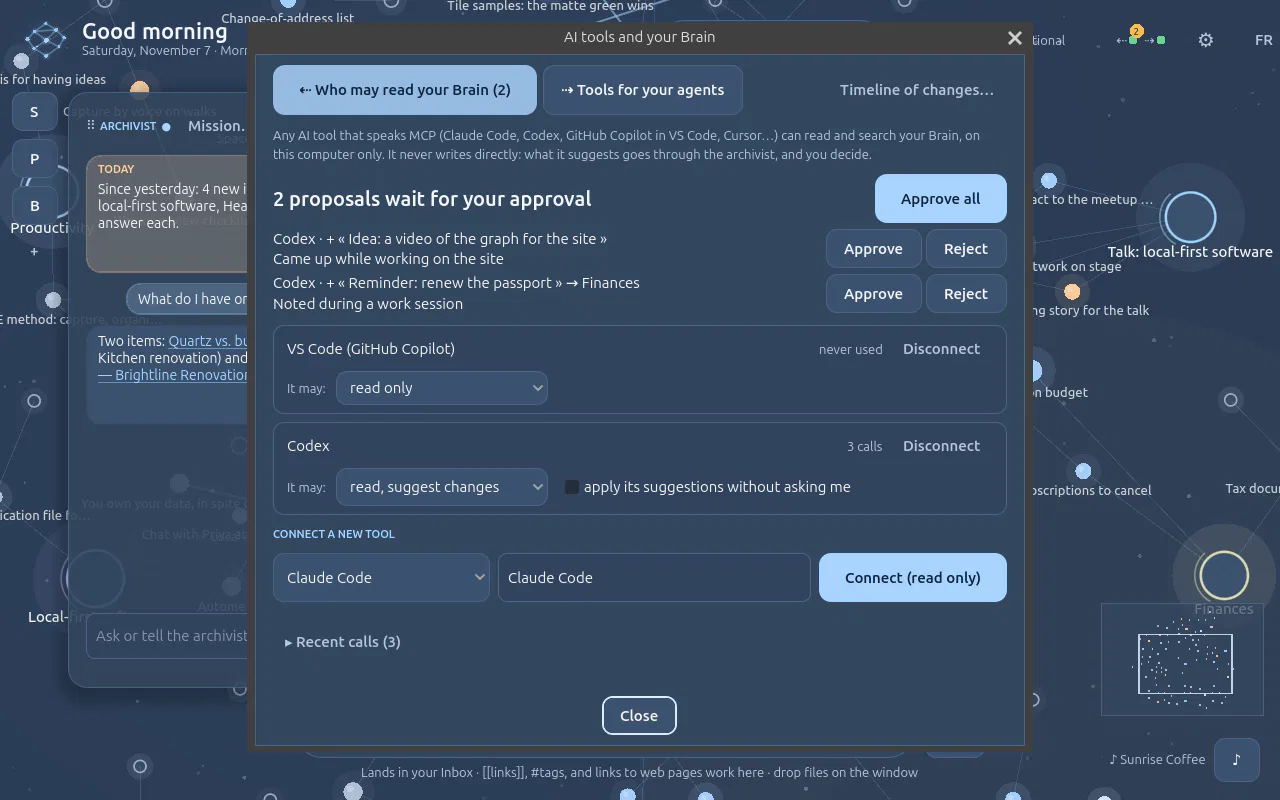
- The archivist is the only door. A tool never writes. At the level you give it, it proposes an item to add or a change (move, link, fields, trash); the archivist files or checks it with your rules, and it waits for your approval (or goes through at once for a tool you trust). It gets a receipt.
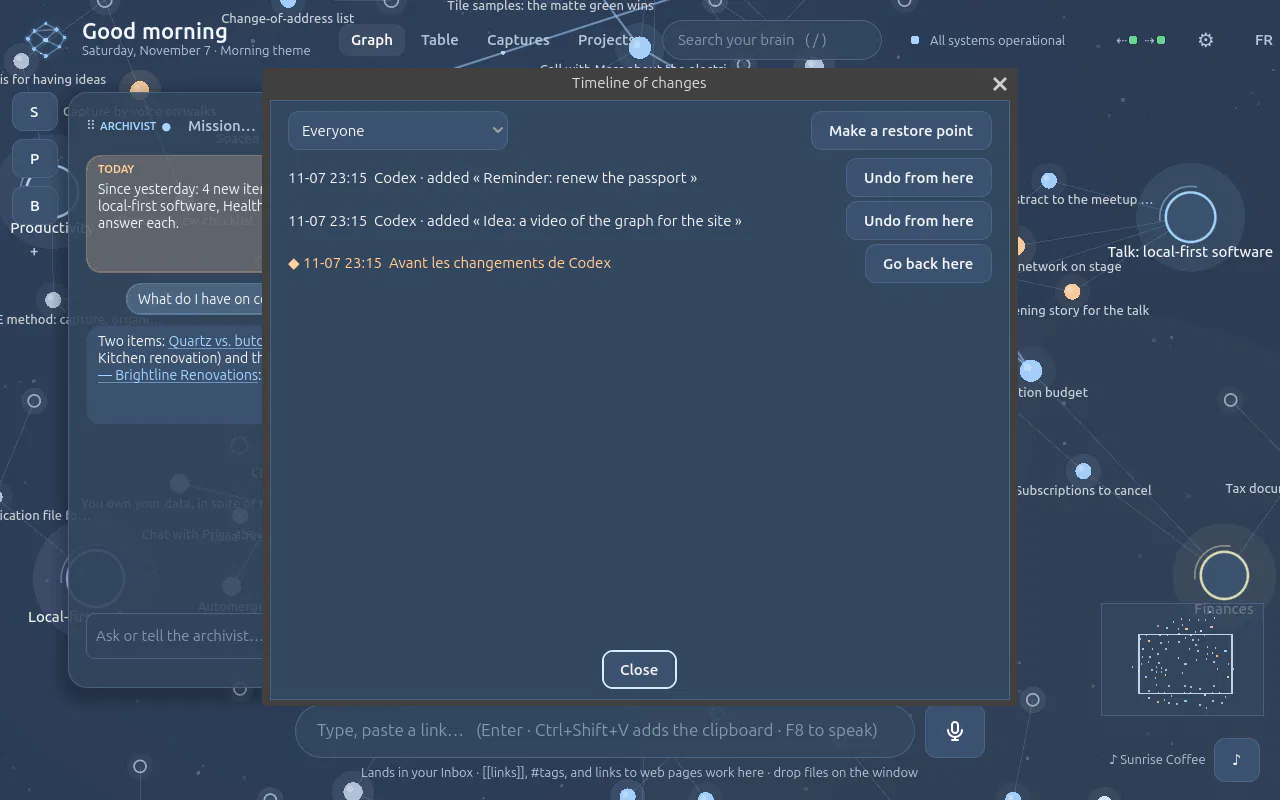
- Timeline of changes: who changed what (you and the archivist, or a tool), restore points (one before each tool's first write of a session, plus a backup), and « Go back here », for everyone or one author. An item you changed since stays as it is.
- The ⇠ light turns green when a tool is connected and red during a call. Disconnect revokes its key. Local only: 127.0.0.1, nothing on the network.
Connect
MCP servers for your agents
Your agents can use the tools of MCP servers you connect, in the same window. Search the official MCP registry or paste a server's address; each entry says its family (no account, key, sign-in, local program), publisher and source. A few servers checked by hand are offered to start (documentation, code libraries, web search: no account needed); they are examples, any MCP server works the same way.
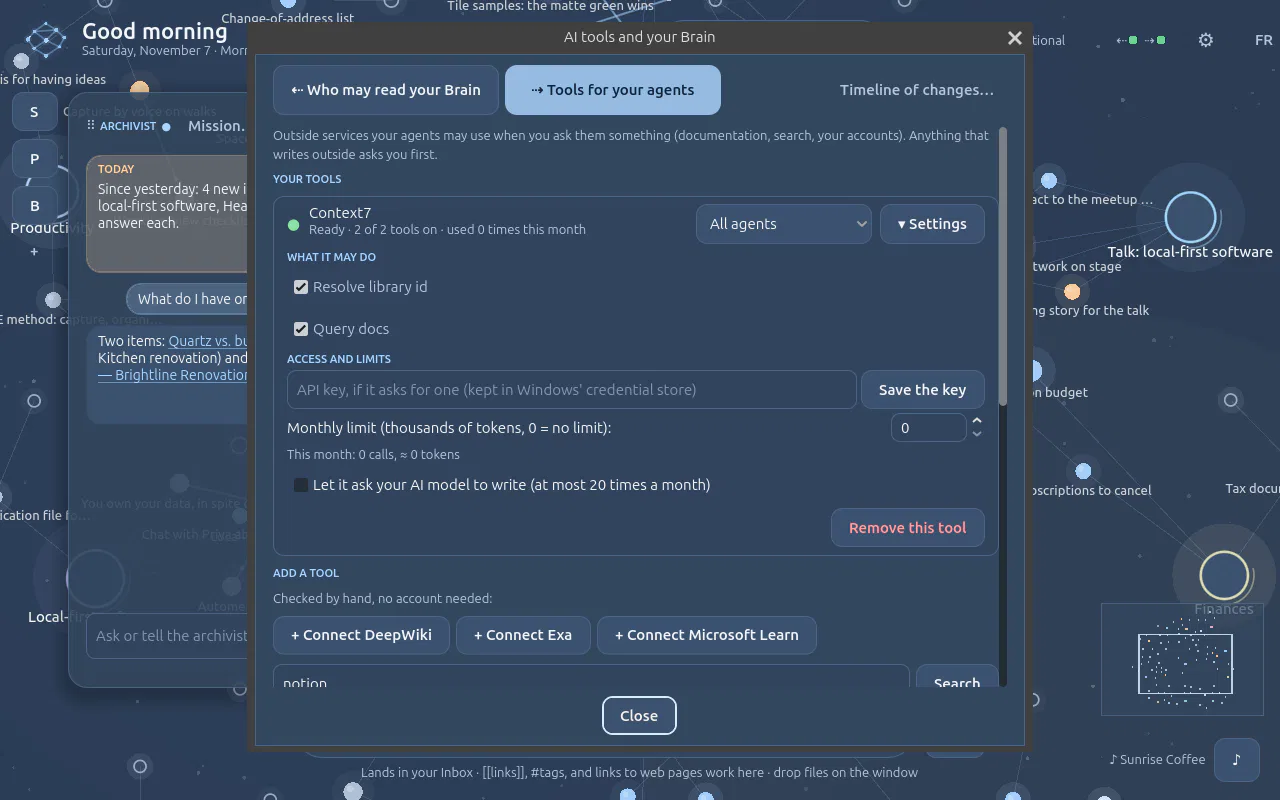
- Who may use it: all agents, or only one. Tools can be switched off; fewer tools make a sharper agent and cost fewer tokens.
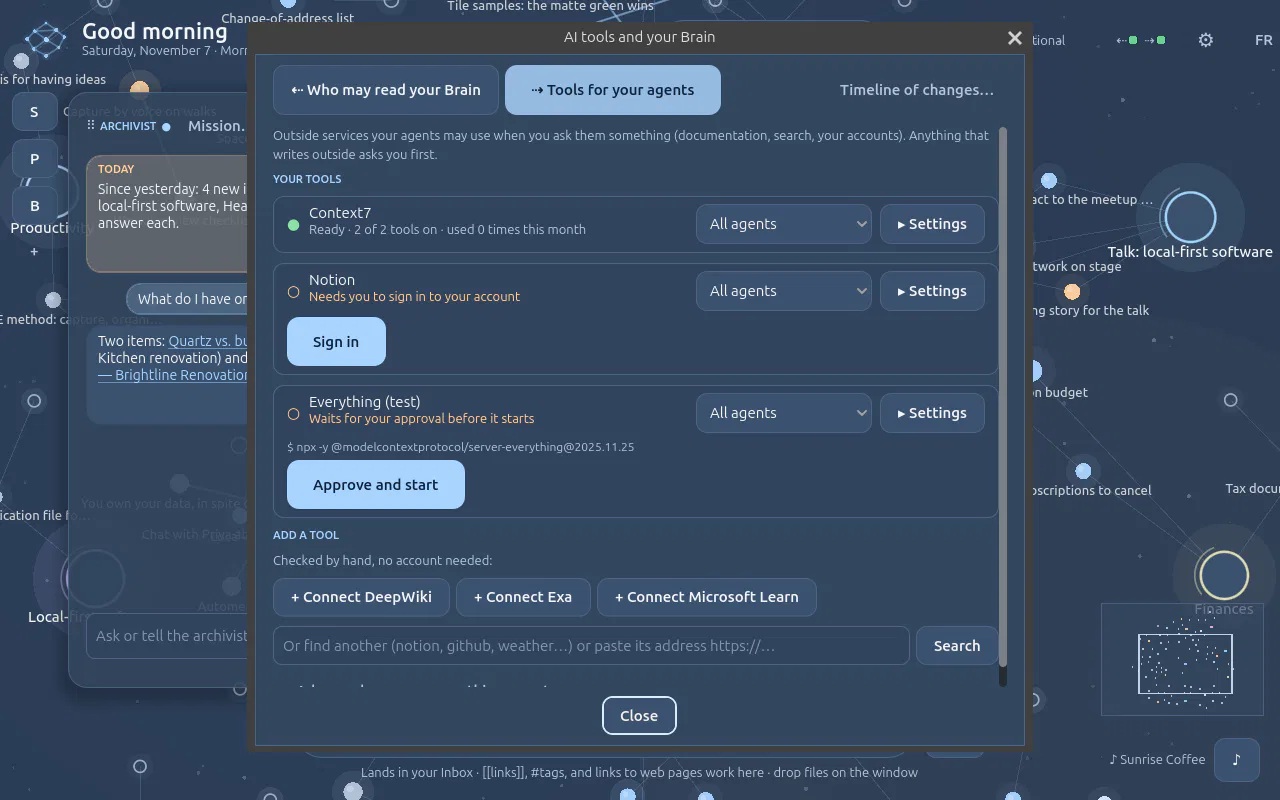
- Keys are kept in Windows' credential store. A server that needs an account sign-in shows « Sign in »: your browser opens the service's page and comes back to the Brain; « Disconnect the account » revokes it.
- Writes outside are confirmed: a tool that could change something outside the Brain waits for your « Allow once » at each call, and the window warns when an agent reads your Brain and could write outside.
- Local programs (npx, uvx, Docker): the exact command is shown with its pinned version and runs only after « Approve and start », in a clean environment without your secrets. The Brain never installs Node, uv or Docker; it says which one is missing.
- Costs: calls and the tokens their answers add are counted per server; a monthly budget can stop a server. What a server returns is information, never instructions. A server may ask you a question during a call (shown in the window); it may not use your AI model unless you allow it.
- The ⇢ light turns green when a server is ready and red during a call; Stop the calls under way ends them.
Connect
Script your brain with the local HTTP API
The engine is a FastAPI service on 127.0.0.1. Anything the app does, a script can do:
add notes, links and files, ask the archivist to file them, search, draw paths, export packs.
1. Find the port and the token
While the app runs, the engine writes its port to runtime/server.json and a fresh token to
runtime/api_token in your data folder. The token changes at every start
and is deleted when the engine stops.
# Linux / WSL (bash)
SB="${SBGD_HOME:-$HOME/.local/share/second-brain-gd}"
PORT=$(python3 -c "import json,sys;print(json.load(open(sys.argv[1]))['port'])" "$SB/runtime/server.json")
TOKEN=$(cat "$SB/runtime/api_token")
API="http://127.0.0.1:$PORT"
auth=(-H "Authorization: Bearer $TOKEN" -H "Content-Type: application/json")
curl -s "$API/health"
# Windows (PowerShell)
$SB = "$env:LOCALAPPDATA\SecondBrainGD"
$PORT = (Get-Content "$SB\runtime\server.json" | ConvertFrom-Json).port
$H = @{ Authorization = "Bearer " + (Get-Content "$SB\runtime\api_token" -Raw).Trim() }
Invoke-RestMethod "http://127.0.0.1:$PORT/health"2. Add a thought and let the archivist file it
ID=$(curl -s "${auth[@]}" -d '{"title":"Reading lamp idea","body":"A warm lamp over the kitchen island. #renovation"}' \
  "$API/brain/notes" | python3 -c "import json,sys;print(json.load(sys.stdin)['id'])")
curl -s "${auth[@]}" -X POST "$API/assistant/classify/$ID"   # → {"applied": true, "receipt": "…", …}
3. Add a web page or a file
curl -s "${auth[@]}" -d '{"url":"https://example.com/article"}' "$API/sources/url"     # → {"note_id": "…", …}
curl -s "${auth[@]}" -d '{"path":"/home/me/Documents/quote.pdf"}' "$API/sources/file"
# then file it: POST $API/assistant/classify/<note_id>
4. Search and connect
curl -s "${auth[@]}" "$API/brain/search?q=warm%20lighting&limit=10"
curl -s "${auth[@]}" "$API/brain/path?from=Reading%20lamp%20idea&to=Kitchen%20renovation"
curl -s "${auth[@]}" "$API/brain/feed"          # what came in, as the archivist filed it
Main routes
| Route | Does |
|---|---|
GET /health | Public liveness check, reveals nothing private |
POST /brain/notes | Create an item: title, body, optional space_id, kind |
GET /brain/items/{id} | An item with the archivist's record |
POST /assistant/classify/{id} | Ask the archivist to file an item |
POST /sources/url · /sources/file | Ingest a page or a local file (kept as an original) |
GET /sources/{id}/page/{n}?width= | A PDF page as PNG (320 to 2400 px) |
GET /brain/search?q= | Meaning search, then words |
GET /brain/path?from=&to= | The path between two items |
GET /brain/graph · /brain/structure | Everything the graph draws · your PARA places |
GET/PUT /brain/context | The working context |
POST /packs/preview · /packs/export · /packs/import | Brain packs (see Packs) |
GET /assistant/actions · POST /assistant/actions/{id}/undo | The journal, and Undo |
/browser/… | The browser extension: pairing, status, live link, pages (see Browser extension) |
The API binds to 127.0.0.1 only and has no CORS: a web page cannot read
it. Treat the token like a password while the app runs. The interactive API docs are disabled on purpose.
Python example
import json, os, pathlib, urllib.request

home = pathlib.Path(os.environ.get("SBGD_HOME", pathlib.Path.home() / ".local/share/second-brain-gd"))
port = json.loads((home / "runtime/server.json").read_text())["port"]
token = (home / "runtime/api_token").read_text().strip()

def call(method, path, body=None):
    req = urllib.request.Request(f"http://127.0.0.1:{port}{path}", method=method,
                                 data=json.dumps(body).encode() if body is not None else None,
                                 headers={"Authorization": f"Bearer {token}", "Content-Type": "application/json"})
    with urllib.request.urlopen(req) as r:
        return json.loads(r.read())

note = call("POST", "/brain/notes", {"title": "Book: Local-First Software", "body": "Ink & Switch essay, 2019. #local-first"})
print(call("POST", f"/assistant/classify/{note['id']}")["receipt"])
Connect
Brain packs: share part of your brain
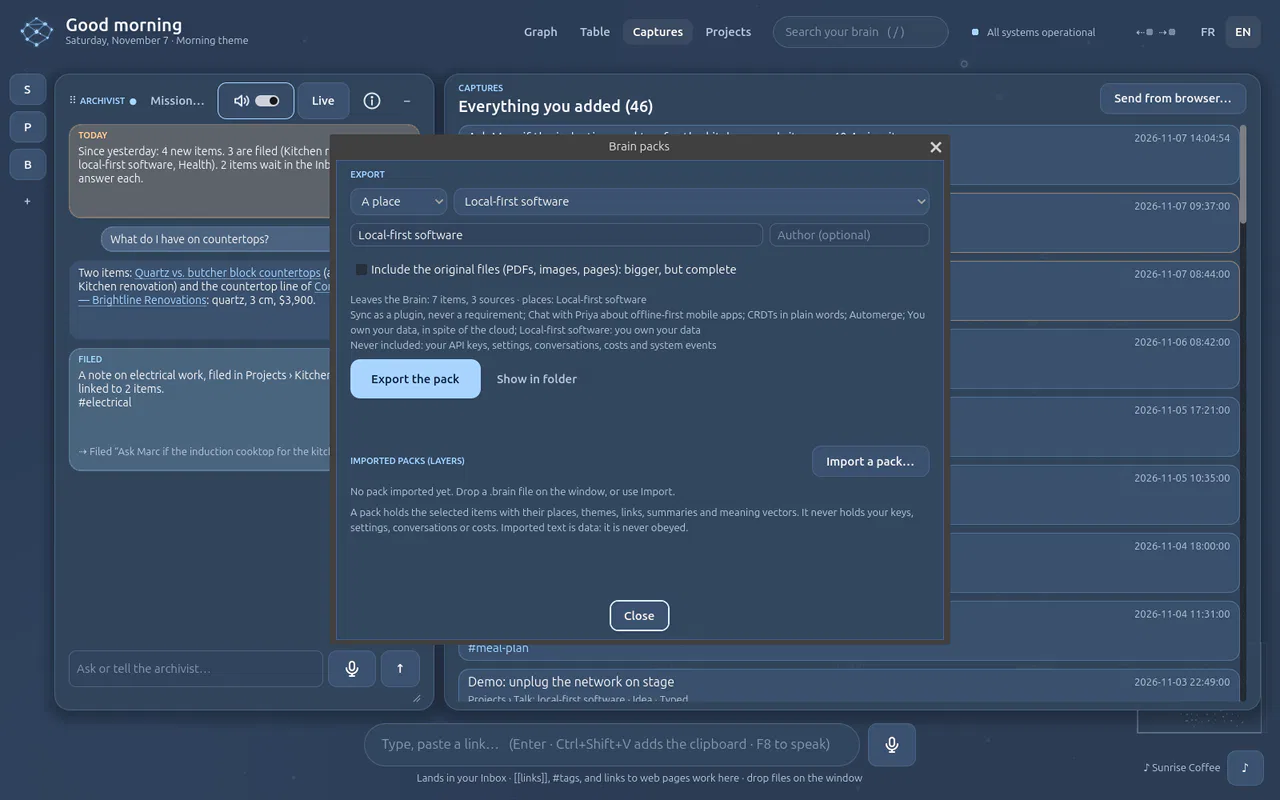
A pack is a .brain file you can share, archive or use to restart a project elsewhere.
Imported, it becomes a layer: switch it off, merge it, or remove it without touching your own items.
Export
Open the engine room → Your data → Packs… (or say “export the Renovation project”).
Choose what leaves: everything, a place, a theme, a search, or chosen items. The preview lists exactly what will be written before anything is.
Add a title, author, licence and description, tick include originals if you want the PDFs and pages too, and export. The file lands in
exports/.
curl -s "${auth[@]}" -d '{"selection":{"place":"Kitchen renovation"},"title":"Kitchen renovation",
  "author":"me","licence":"CC BY 4.0","include_originals":true}' "$API/packs/export"
Import
Drop a .brain on the window, use the Packs dialog, say “import a pack”, or
POST /packs/import {"path": "…"}. Then manage layers from the dialog, by voice, or with
GET /packs/layers, PATCH /packs/layers/{id} {"enabled": false},
POST /packs/layers/{id}/merge and DELETE /packs/layers/{id}.
The format
| Entry | Content |
|---|---|
manifest.json | format: "sbgd-brain-pack", version: 1, title, author, licence, description, dates, app and schema versions, embedding model, the selection, counts, and the database's sha256 |
data.sqlite | A normal Second Brain database holding only the selected items: places, items, links, themes, the archivist's records, meaning vectors, sources and their indexed text |
originals/… (optional) | The original files, each verified by its hash on import |
Never included: settings, keys, conversations, the action journal, system events and costs. A test checks those tables are empty in every exported pack.
What import guarantees
- Only the known entries are accepted (no
../escape.py), up to 512 MB. - The checksum must match; the database is opened read-only; a newer schema is refused.
- Every item gets a new id; identical items are skipped; vectors are reused when the embedding model matches.
- Imported text is data, never instructions, and nothing in a pack is ever executed.
Build a pack from your own data: start the app with an empty data folder
(SBGD_HOME=/tmp/my-pack), feed it through the API (a folder of Markdown, a
reading list, a course), let the archivist file it, then export everything. You get a ready-to-share,
pre-filed, pre-linked brain.
Capture
Files and originals
Every file and web page is copied once to data/originals/<2 hex>/<sha256>.<ext>.
Moving or deleting the file on disk never loses it, and web pages are kept as they were on the day you added them.
- Text:
.txt .md .markdown .csv .json .log .rst .org .html .htm .docx .pdfare extracted, chunked and indexed. - Images:
.png .jpg .jpeg .webp .gif: the text inside them is read by the local OCR (no key needed), and with a key a vision model also describes what they show, so you find them by meaning. - Scanned PDFs (pages that are pictures, with no selectable text) are read by the local OCR: see below.
- PDF pages are rendered with PDFium at 320, 640, 1024, 1600 or 2400 px, cached in
runtime/pages, and shown sharper as you zoom. - HTML, .docx and text files open in a reading view of their full text; Open original opens the kept file in your usual app (the browser for HTML).
- “open the original” shows the kept original.
Scanned PDFs: local OCR first
Some PDFs only contain pictures of pages: a scan, or an export that saved each page as an image. To check one, open it and try to select a word: if nothing selects, it is pictures. The Brain then reads the pages itself, on your computer:
| System | Local OCR | Setup |
|---|---|---|
| Windows 10 / 11 | The OCR engine built into Windows (Windows.Media.Ocr), called through PowerShell |
Nothing to install. It reads the languages installed in Windows (Settings → Time & language → Language). |
| Linux | Tesseract | sudo apt install tesseract-ocr (optional; add a language pack such as tesseract-ocr-fra for French) |
Pages are rendered at 2400 px wide before reading, which matters for small print. On a 9-page CV, Windows OCR took about 2 seconds, with a handful of l/I confusions (“OpenAl”). Nothing leaves your machine and it is free.
- Re-read with AI: in the document viewer, a PDF read by the local OCR offers Re-read with AI.
The vision model (
gpt-4o-mini) reads every page again; passages, search and summary follow. The pages go to OpenAI with your key, about a cent for a few pages. - Always use AI:
PATCH /assistant/settings {"ocr_mode": "ai"}(default"local"). - No local OCR and no key: the file is refused with a message saying how to get one; nothing is half-added.
GET /sources/ocrtells which local OCR this machine has.
Your data
Real AI costs on the dashboard
The engine room can show your real OpenAI bill and token usage, read live from OpenAI's Costs and Usage APIs; nothing is stored locally and nothing is estimated.
On platform.openai.com, go to Settings → Organization → Admin keys → Create, with permissions Restricted and only Usage API: Read. It cannot call models or change anything; a normal project key cannot read billing.
In the engine room's Real costs · OpenAI billing card, paste it. It goes to your credential store, like your API key.
Figures refresh every five minutes, by day and by model.
Agents
Codex agent room (parked)
Built and tested, set aside while the graph comes first. It stays in the code and will come back as a module.
Not to be confused with the agents above: the Codex agent room runs OpenAI Codex agents in folders you choose. The Codex app-server package is downloaded from the official release, verified against a pinned SHA-256 and unpacked safely. Agents work read-only by default, every command or file change waits for your approval, and Decline is always offered.
Develop
Architecture
Godot app (GDScript)  ── launches, tails JSON Lines events ──▶  engine/bootstrap.py (stdlib only)
      │                                                         venv · pip --require-hashes · migrate · start · verify
      └── HTTP 127.0.0.1 + Bearer token ──▶  engine/api (FastAPI)
                                               brain · archivist · sources · packs · voice · billing
                                                     │
                                                     ▼
<data>/data/second_brain.sqlite3 · originals/ · exports/| Folder | What lives there |
|---|---|
scenes/ | Godot screens: brain/ (graph, table, captures, viewer, filters, packs, imports, voice memos, MCP window, timeline), startup/, dashboard/, components |
scripts/ | GDScript: core/ (app, theme, audio, settings), setup/, voice/, monitoring/ |
engine/brain/ | Items, places, links, archivist, meaning, packs, paths, typed items, the table and grocery lists, Letter export, the timeline |
engine/sources/ | Extraction, originals, PDF rendering, local OCR, folder and zip imports, voice memos, recipes read from their page |
engine/browser/ · browser-extension/ | Pairing, live link and pages from the browser · the Edge/Chrome extension (Manifest V3) |
engine/mcp/ | The MCP server (read tools, proposals, the WSL relay) and client (Streamable HTTP, SSE, stdio; keys, OAuth sign-in, catalogue, local programs) |
engine/assistant/ · voice/ | The archivist's chat and tools · push-to-talk and live relay |
engine/database/migrations/ | Numbered, checksummed, immutable SQL migrations |
tests/ · tools/ | Python and Godot tests · capture, benchmarks, test runners |
Deeper notes live in the repository's docs/architecture/: intake, packs, originals, live
conversation, billing, agent room, events protocol and process lifecycle; and mcp.md and typed-items.md for MCP and the recipes, table and export.
Develop
Dependencies
Everything installs into a private virtual environment in your data folder, without administrator rights.
Python packages are pinned with hashes in engine/requirements.lock; pip refuses anything else.
Fifteen packages in all, counting what these pull in. Your API keys need no package: on Windows the engine
calls the Credential Manager directly; elsewhere they go to a private file only you can read.
| Package | Why |
|---|---|
fastapi, uvicorn | The local engine API on 127.0.0.1 |
psutil | Engine-room measurements, process watchdog |
websockets | Voice: Godot ↔ engine, engine ↔ OpenAI Realtime |
pypdfium2 | PDFs: their text, and their pages as images for the viewer, cards and the OCR (prebuilt PDFium) |
| Outside Python | Required? | Why |
|---|---|---|
| Godot 4.7 (standard) | Yes | The interface |
| Python 3.12 or 3.13 | Yes | The engine |
| Windows OCR + PowerShell | Built into Windows | Reading scanned PDFs and text in images, locally |
Tesseract (tesseract-ocr, -fra) | Optional, Linux | The same on Linux |
| Microsoft Edge | Built into Windows | Printing PDFs in the background (otherwise the page opens for Ctrl+P) |
| Node.js, uv, Docker | Only for local MCP servers you choose | Never installed by the Brain; the MCP window says which one a server needs |
| An OpenAI key | Optional | Filing, summaries, meaning search, voice, voice memos, image descriptions, Re-read with AI |
To add a package: edit engine/requirements.in, then regenerate the lock with
uv pip compile engine/requirements.in --generate-hashes -o engine/requirements.lock and explain why in the pull request.
Develop
Run the tests
The Python tests create a real virtual environment and start the real engine in a temporary folder. The Godot runner presses the real Setup button headless and drives the app, including a performance guard on a 2,000-item graph. No test calls OpenAI: fake providers stand in.
# Linux / WSL
./tools/test.sh                         # Python + Godot (set GODOT= if godot is not on PATH)

# Windows
.\tools\test.ps1                                                   # Python
.\tools\test.ps1 -Godot C:\path\Godot_v4.7.2-stable_win64_console.exe   # + Godot end to end
Screenshots are captured from the real app on a private virtual display (no window opens):
./tools/capture.sh loop-16                       # the loop's own screens, your data folder
SBGD_SHOT_SIZE=1600x1000 ./tools/showcase.sh     # the website screenshots, from the example brain
The showcase seeds an example brain (ten places, about forty-five items over three weeks, a PDF and a sketch kept
as originals) with a scripted stand-in model, so it never calls OpenAI and never touches your own data. Convert the
results for the site with godot --headless --path . --script res://tools/web_images.gd -- in.png=out.webp@1280.
The How-to guides
Each guide is a scenario played on the real app (tools/howto.gd), one screenshot
per step; its text lives in tools/howto/guides.py and tools/howto/build_page.py writes
public/howto.html. Guides marked Real answers are recorded once with the real model, then replayed:
./tools/howto.sh                    # every guide, recorded answers replayed: no network, no key, no cost
./tools/howto.sh --record web       # the real model answers again (OPENAI_API_KEY through dotenvx)
./tools/howto.sh --edge browser images   # the browser guides: drive a real Microsoft Edge (Windows, from WSL)
A recording keeps the model's answers, web searches and downloaded pages
(tools/howto/recordings/); item ids are mapped to the new ones on each run. A guide whose steps no
longer play, or whose screenshots do not match its steps, makes the run fail, so the guides double as end-to-end
tests. After a recorded run, the tokens used are checked against a cap per guide. The recordings that hold
full copies of third-party pages (mission, web, browser) are not in the repository: those guides need a new
--record.
The browser guide's Edge screenshots are the real Edge window. tools/howto/edge.ps1 starts a separate
Edge with a throwaway profile (no sign-in, no sync, nothing from your own Edge), loads the extension from
browser-extension/, drives it through DevTools on 127.0.0.1 and Windows UI Automation (for
Edge's own permission prompt), captures the window, then closes it and deletes the profile. It takes the screen
for about three minutes, so it only runs with --edge; otherwise the screenshots already on the site
are kept.
Develop
Contributing
The project is built in loops: small increments that each ship something working, tested on Linux and native Windows, captured from the real app and written up in the journal.
- Real or nothing. No mock-ups in the UI, no estimated numbers. A value that cannot be measured says so.
- Everything undoable. A change made by the archivist goes through the action journal.
- Schema changes are new migrations; applied ones are never edited.
- Dependencies are pinned with hashes (
engine/requirements.in→uv pip compile … --generate-hashes). - Voice parity. A new action in the interface gets a tool the archivist can call, and a test in the fake model.
- No secrets in the repository or in logs. Keys go to the credential store; developer keys go through dotenvx.
- Tests first-class. A change comes with Python tests and, for UI, checks in
tests/godot/test_runner.gd.
Develop
Security model
- The engine listens on
127.0.0.1only; a new 32-byte token is generated at each start, passed by environment variable, stored with private permissions and deleted at stop. /healthis the only public route; there is no CORS and no docs endpoint.- Keys live in the OS credential store; Godot never holds them; they never reach logs or events.
- No silent interpreter download, no admin rights, no remote scripts. Only pip wheels pinned by SHA-256.
- Imported packs, fetched pages and pages sent by the browser are data, never instructions; archives are unpacked defensively.
- The browser extension gets its own token by one-time pairing (hash stored, revocable); it can only send pages
and answer commands, and only reaches
127.0.0.1. - The engine stops with the app, and on its own if the app crashes (parent-process watchdog).
MCP: the
/mcpendpoint answers 127.0.0.1 only; each connected tool has its own token (only its hash is kept), never writes (it proposes; the archivist decides), and every applied change is journaled with its author. Keys and sign-ins for MCP servers stay in the OS credential store; a tool that writes outside is confirmed at each call; local programs run only after you approve their exact command, without your secrets.
Develop
Troubleshooting
| Symptom | Fix |
|---|---|
| No compatible Python found | Install 3.12 or 3.13, tick Add to PATH, restart Godot. Or paste the path to python.exe in Check prerequisites, or set SBGD_PYTHON. |
Typing python opens the Store | That is the App execution alias. Install Python, or disable the alias in Windows settings. |
| Setup fails with the Store Python | Run Setup from Godot (it creates the data folder first). |
| The bookmarklet stopped working | The engine changed port or the key was renewed: copy the link again. |
| Voice or filing does nothing | Check the key in the engine room's Voice card; the error is shown there in plain words. |
| A PDF export opens as a web page | Edge was not found or refused: press Ctrl+P and choose Save as PDF. The page is in exports/. |
| “does not allow a transcription model” | Your OpenAI project limits its models: Settings → Project → Limits on platform.openai.com, allow gpt-transcribe. |
| An MCP server needs a key or a sign-in | In the AI tools window, tab Tools for your agents: open its Settings and save the key, or click Sign in on its card. |
| An AI tool in WSL cannot reach the Brain | Use its “in WSL” command from the AI tools window (a relay with the app's Python); keep the app open; restart the tool. |
Logs: logs/bootstrap.log (every setup event, including pip output) and logs/server.log.
More in the repository's docs/troubleshooting.md.